# Libraries
library(ggplot2)
library(dplyr)

# Load the Titanic dataset
titanic <- read.csv("https://raw.githubusercontent.com/GeorgeOrfanos/Data-Sets
/refs/heads/main/titanic.csv")19 Data Visualization with ggplot2
19.1 Introduction
In this chapter, we introduce data visualizations in R using
ggplot2, the most widely used package for graphical
representation in R. This package is part of the
tidyverse collection, making it highly compatible
with tools like dplyr for data manipulation. To keep
things simple and focused, we’ll use the
Titanic dataset for all examples. This dataset is
available from several public sources, including GitHub and Kaggle.
The logic behind ggplot2 is modular: we begin with a
basic plot and then add layers of various elements to specify
additional components, such as points, lines, labels, or colors.
Just as we use the pipe operator (%>%) in
dplyr to build data workflows step by step,
ggplot2 follows a
layered grammar of graphics. This approach allows
us to define clearly and systematically what should appear in a
plot, making our code flexible, readable and auditable.
19.2 Preparing the Environment
Let’s begin by loading the necessary R packages,
dplyr and ggplot2, and importing the
Titanic dataset:
The Titanic dataset contains information on 891 passengers aboard the RMS Titanic. This version is a cleaned subset of the original passenger manifest and is commonly used for educational and modeling purposes.
Since we’ll analyze this dataset in the next chapter as well, here we will only briefly describe the three variables we’ll focus on:
-
Fare: The fare paid for the ticket
-
Age: The age of the passenger in years
-
Survived: Indicates whether the passenger survived (
1) or did not survive (0)
To simplify our plots, we will create a subset of the dataset that
includes only these three variables, while transforming the variable
Survived to a factor:
# Subset the dataset to keep only the three relevant columns
titanic_subset <- titanic %>%
  select(Fare, Age, Survived) %>%
  mutate(Survived = as.factor(Survived))
19.3 Starting from Scratch
The plot below shows the relationship between Age and
Fare:
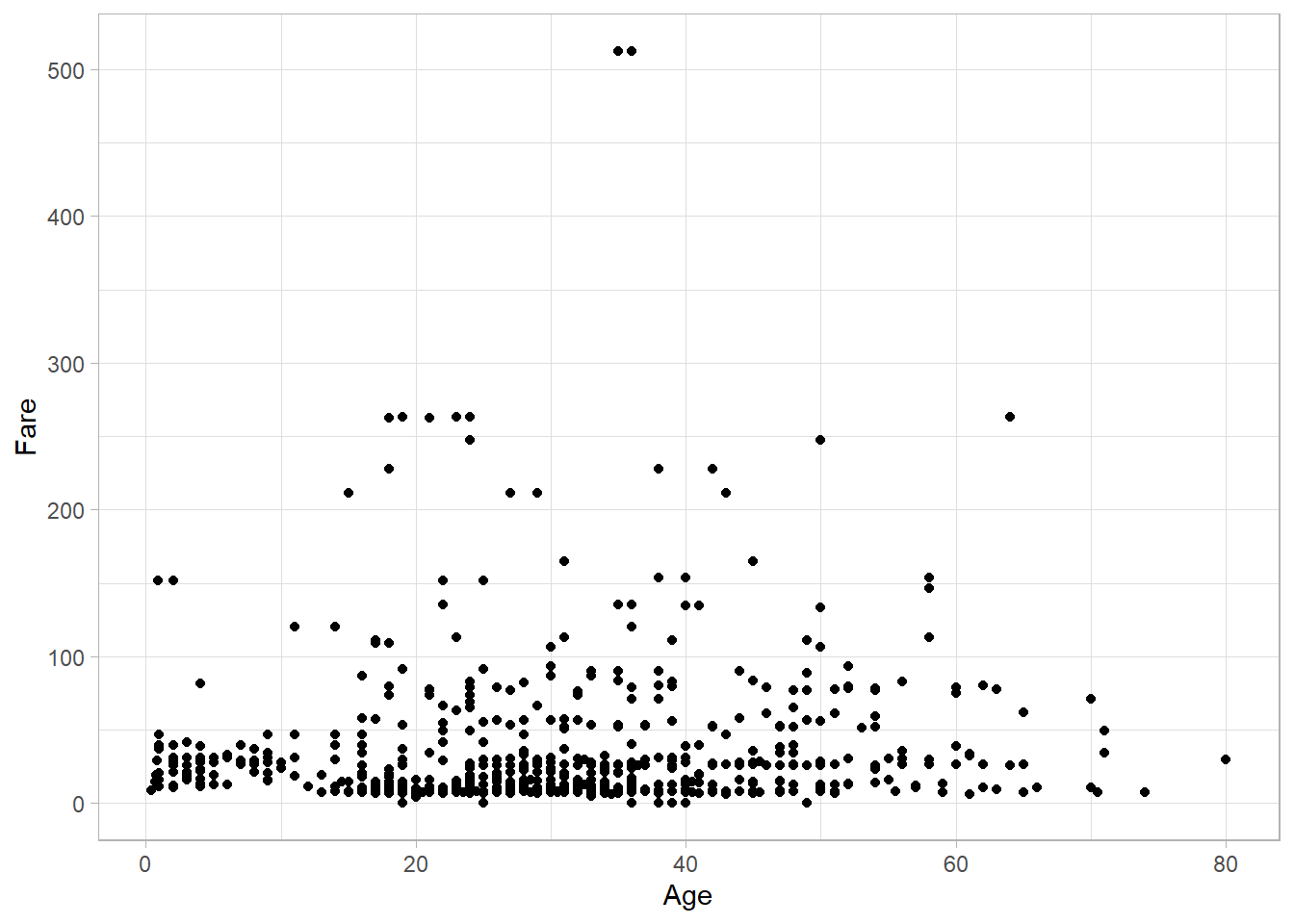
There is no strong association between these two variables—older
passengers could have either cheaper or more expensive tickets
compared to younger passengers. In statistical terms, there is no
clear correlation between Age and Fare.
Let’s now walk through on how to re-create this plot from scratch
using ggplot2.
Whenever we begin a new plot, we use the
ggplot() function. The first argument we need to
specify is the data we want to plot using the
data argument. For example, to start a plot based on
the titanic dataset:
# Start a plot
ggplot(data = titanic_subset)

This generates an empty plot. Although it might seem like something is missing, this is actually expected; even though we have specified the dataset, we have not yet told R what we would like to plot (or how to plot it).
Next, we define the aesthetic mappings using the
aes() function, which stands for aesthetics. In
ggplot2, aesthetic mappings link variables in the
dataset to visual properties like position (x, y), color, size, etc.
To set Age on the x-axis and Fare on the
y-axis, we use:
# Specifying aesthetics
titanic_subset %>%
  ggplot(mapping = aes(x = Age, y = Fare))
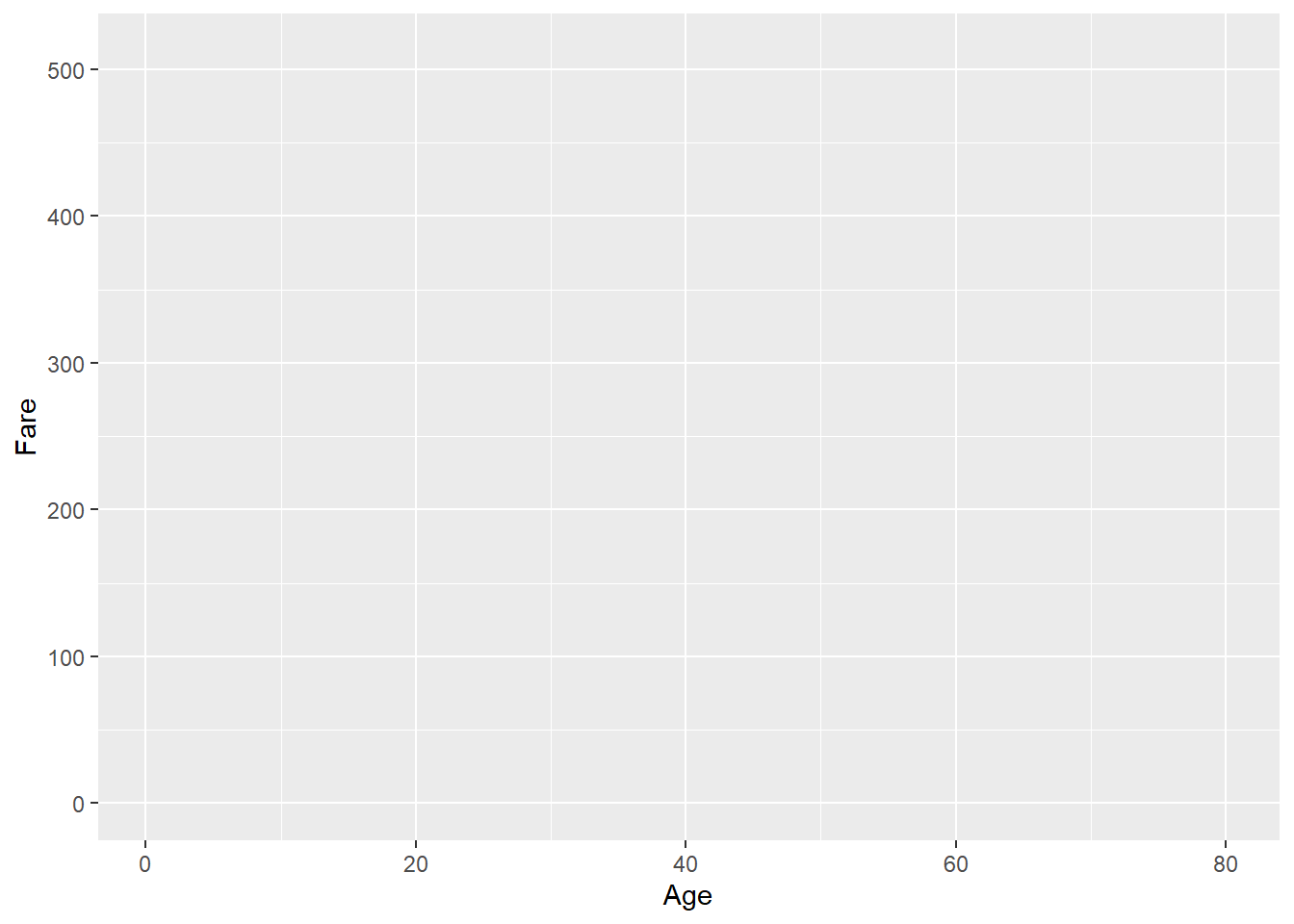
Now the plot shows axes labeled with the correct variable names, but
still no data points, because we still have not yet defined how to
represent the data visually. To do that, we add a
geometry, which tells ggplot2 how to
display the data. For a scatter plot (where each point represents
one observation), we use geom_point():
# Add geometry to create a scatter plot
titanic_subset %>%
  ggplot(mapping = aes(x = Age, y = Fare)) +
  geom_point()
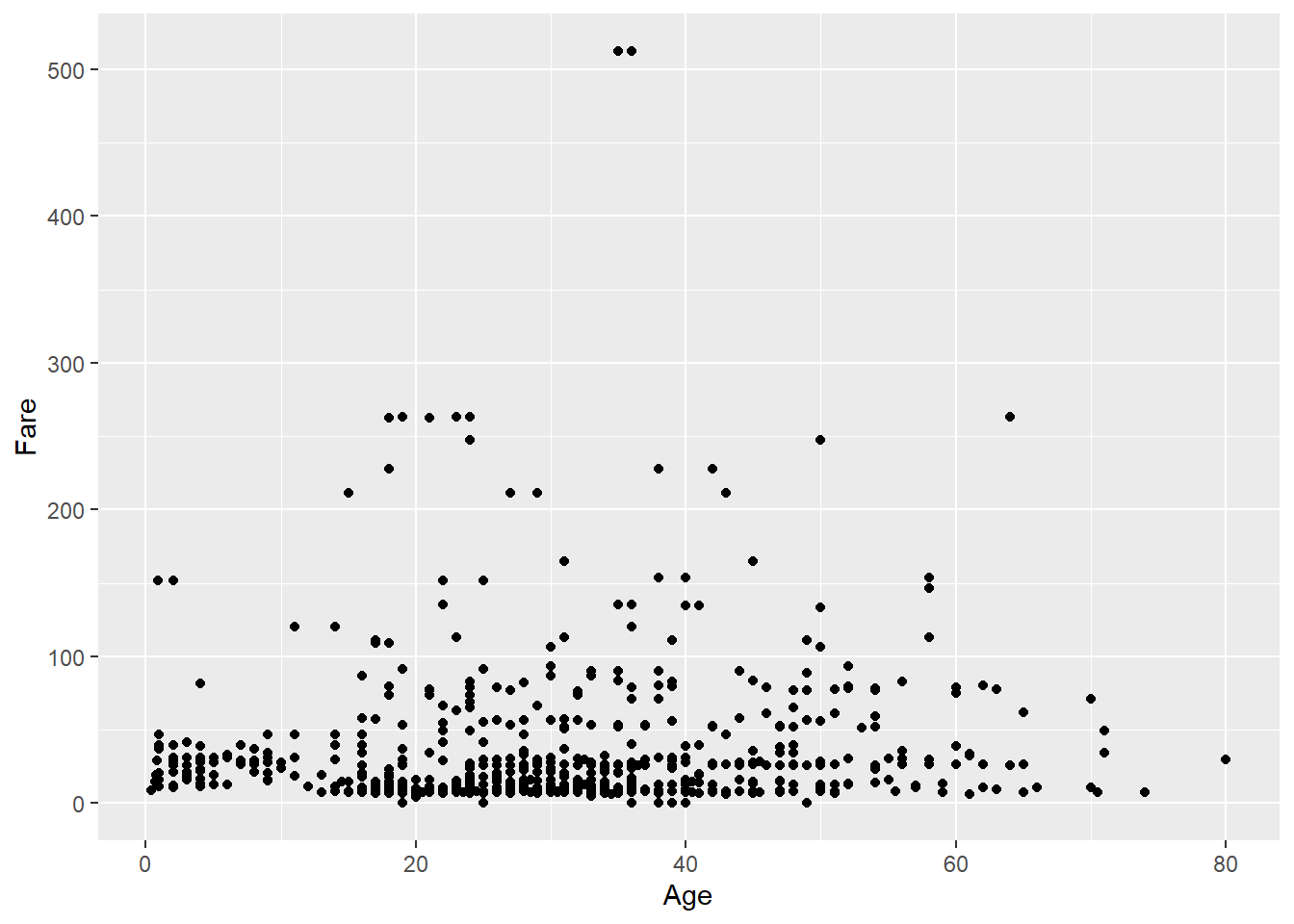
Notice that in ggplot2, we add layers to the plot using
the plus sign (+), not the pipe (%>%)
used in dplyr. The result is a functional scatter plot.
To refine its appearance, we can customize the
theme, which controls non-data elements like
background color, grid lines, font sizes, and margins.
ggplot2 offers several built-in themes. In our original
example, we used theme_light():
# Create a graph with pipes - Data, Aesthetic, Geometry, Theme
titanic_subset %>%
  ggplot(mapping = aes(x = Age, y = Fare)) +
  geom_point() +
  theme_light()
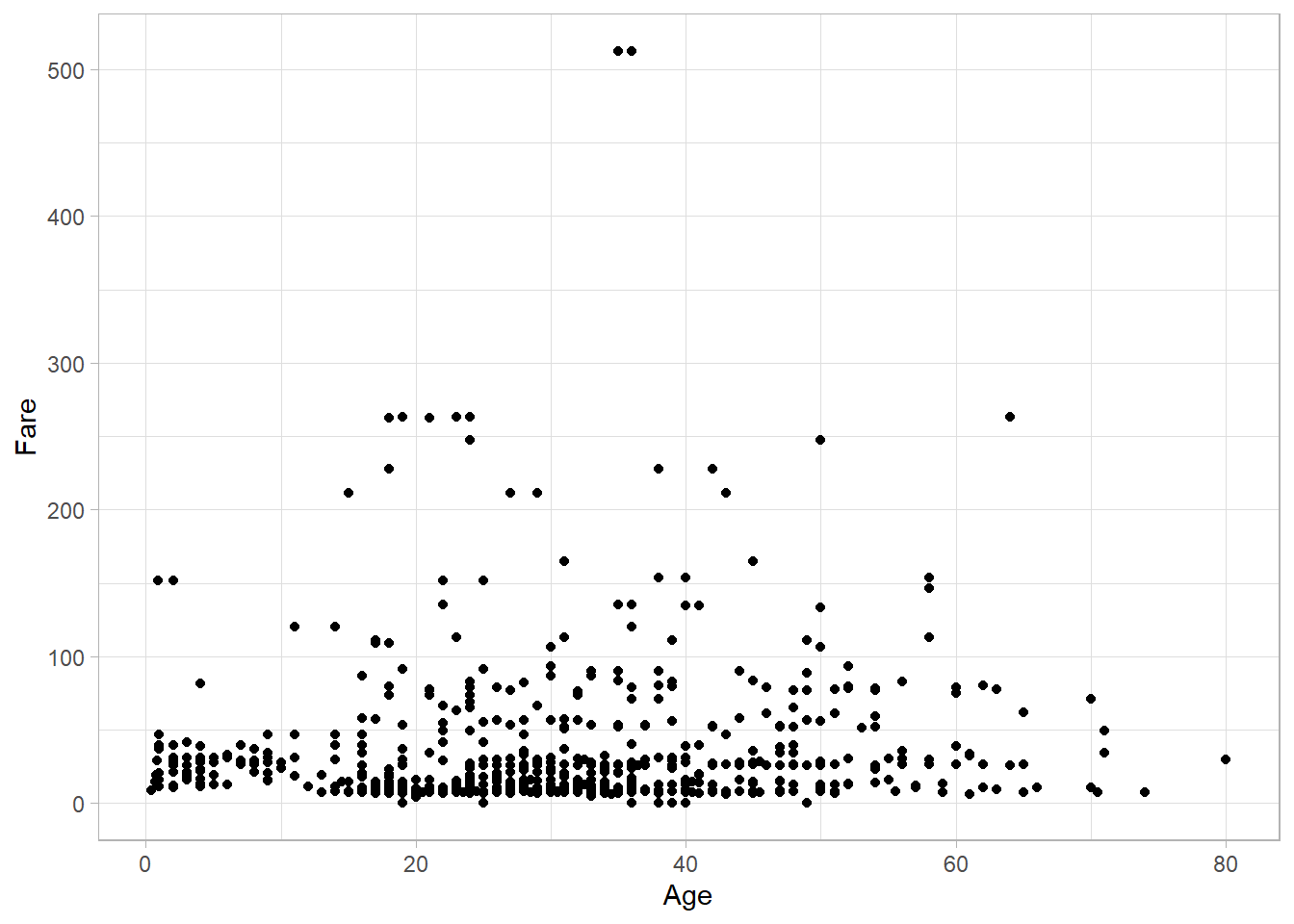
The final plot looks exactly like the one we presented at the
beginning of this section. This example demonstrates the modular
nature of ggplot2: each layer builds on the previous
one to produce the final visualization.
To summarize, every plot in ggplot2 consists of four
main components: data, aesthetics, geometry, and theme. A fifth,
optional component is facets, which allow us to split one plot into
multiple subplots based on a variable. We will now explore each of
these layers in more detail, including how facets work.
19.4 Data and Aesthetics
The first thing we need to consider before creating a plot is the
data we want to visualize. For instance, the Age and
Fare variables are numeric (continuous), so it makes
sense to visualize them with a scatter plot. A bar plot, on the
other hand, typically requires a categorical variable along with a
continuous one — so we wouldn’t be able to create a meaningful bar
plot using only Age and Fare, since the
values of one variable would be treated as different categories.
At this stage, we are only choosing which data and variables we want to use. We haven’t yet specified whether we want a scatter plot or a bar plot, or even which variable should go on the x-axis. When we talk about data, we’re simply referring to the data frame that will be used for plotting. In earlier examples, when we created the blank canvas, that was the step where the data was specified.
Once the dataset is chosen, we decide on the aesthetics,
meaning which variables will be mapped to visual elements of the
plot. Aesthetics include everything we write inside the
aes() function. In the previous example, we included
Age and Fare in aes().
Although we didn’t see any shapes on the plot at that point, we
could already see the x and y axes labeled, meaning those aesthetics
have been mapped.
Besides the x and y axes, we can map more variables to additional
aesthetics while still keeping the plot two-dimensional. For
instance, we can add the Survived variable to color the
points in the scatter plot:
# Scatter plot with color mapped to a variable
titanic_subset %>%
  ggplot(aes(x = Age,
             y = Fare,
             color = Survived)) +
  geom_point() +
  theme_light()
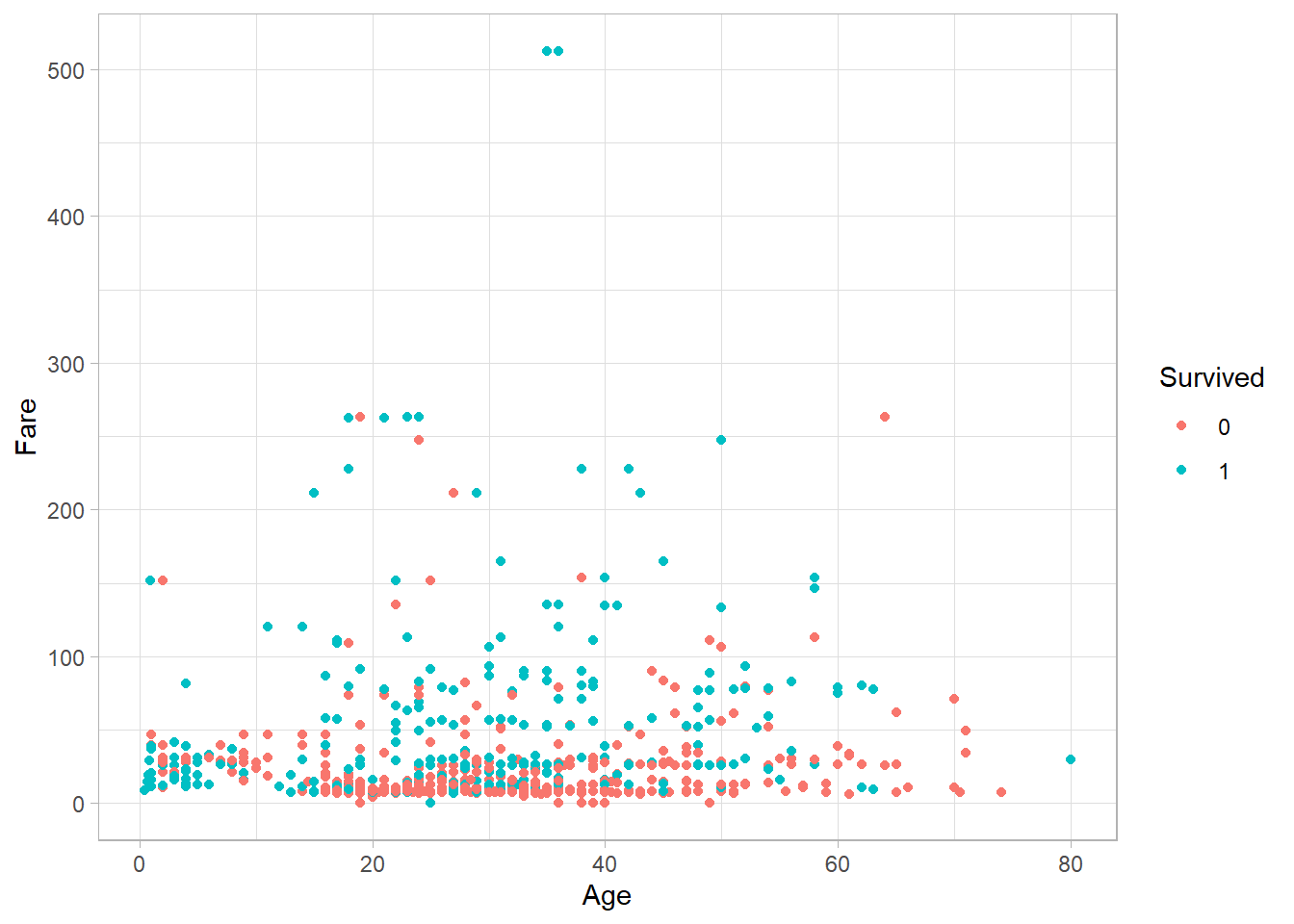
Each point now has a color based on the corresponding survival status. Similarly, we can map variables to other aesthetics:
-
fill: fills an area with color (used in bars, boxplots, etc.) -
shape: changes the shape of the point -
alpha: adjusts transparency -
size: adjusts the size of points or lines
Depending on the data type, these mappings may or may not make sense, so it’s worth experimenting with different combinations to explore their effects.
If instead we want to assign fixed values to these aesthetics (not
based on a variable), we do this outside of the
aes() function, inside the corresponding
geom_*() layer. For example, here we set all points to
blue, manually:
# Scatter plot with color set to a fixed value
titanic_subset %>%
  ggplot(aes(x = Age,
             y = Fare)) +
  geom_point(color = "blue") +
  theme_light()
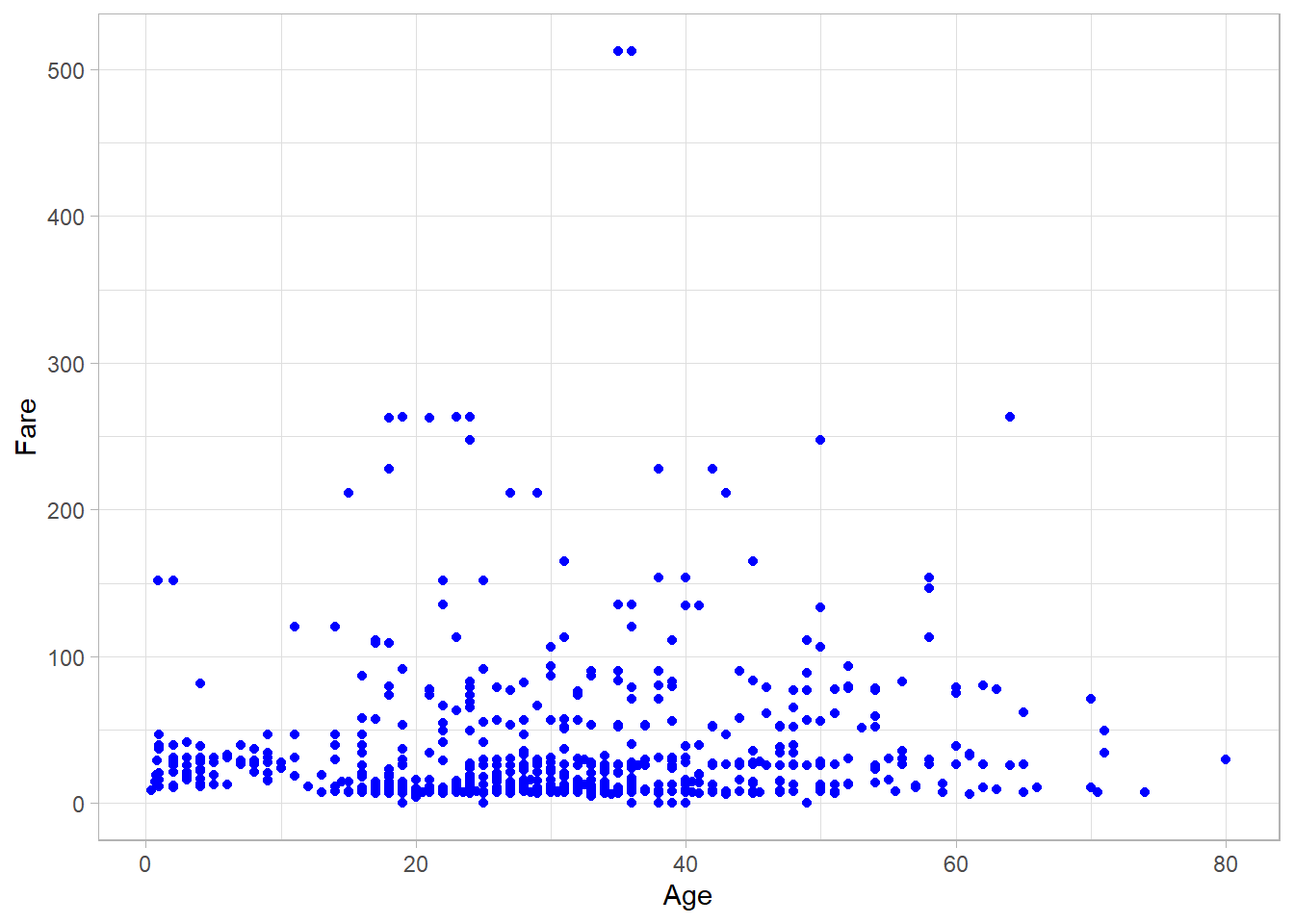
It might seem confusing at first, but the rule is simple:
-
If the aesthetic is mapped to a variable → put it inside
aes() -
If the aesthetic is set to a fixed value → put it outside
aes()
It is important to note that we can specify aesthetics either in the
ggplot() function or inside the
geom_point() function. When aesthetics are defined in
ggplot(), they are inherited by all subsequent layers
(geoms); we will see later in this chapter how to add multiple
geoms. In contrast, when aesthetics are specified inside a specific
geom_ function, they apply only to that particular
layer.
There are additional aesthetics we can adjust to control the
appearance of the plot. For example, we can limit the x-axis and
y-axis ranges using the xlim() and
ylim() functions respectively:
# Limit the range of the x-axis and the y-axis
titanic_subset %>%
  ggplot(aes(x = Age,
             y = Fare,
             color = Survived)) +
  geom_point() +
  theme_light() +
  xlim(0, 120) +
  ylim(0, 600)
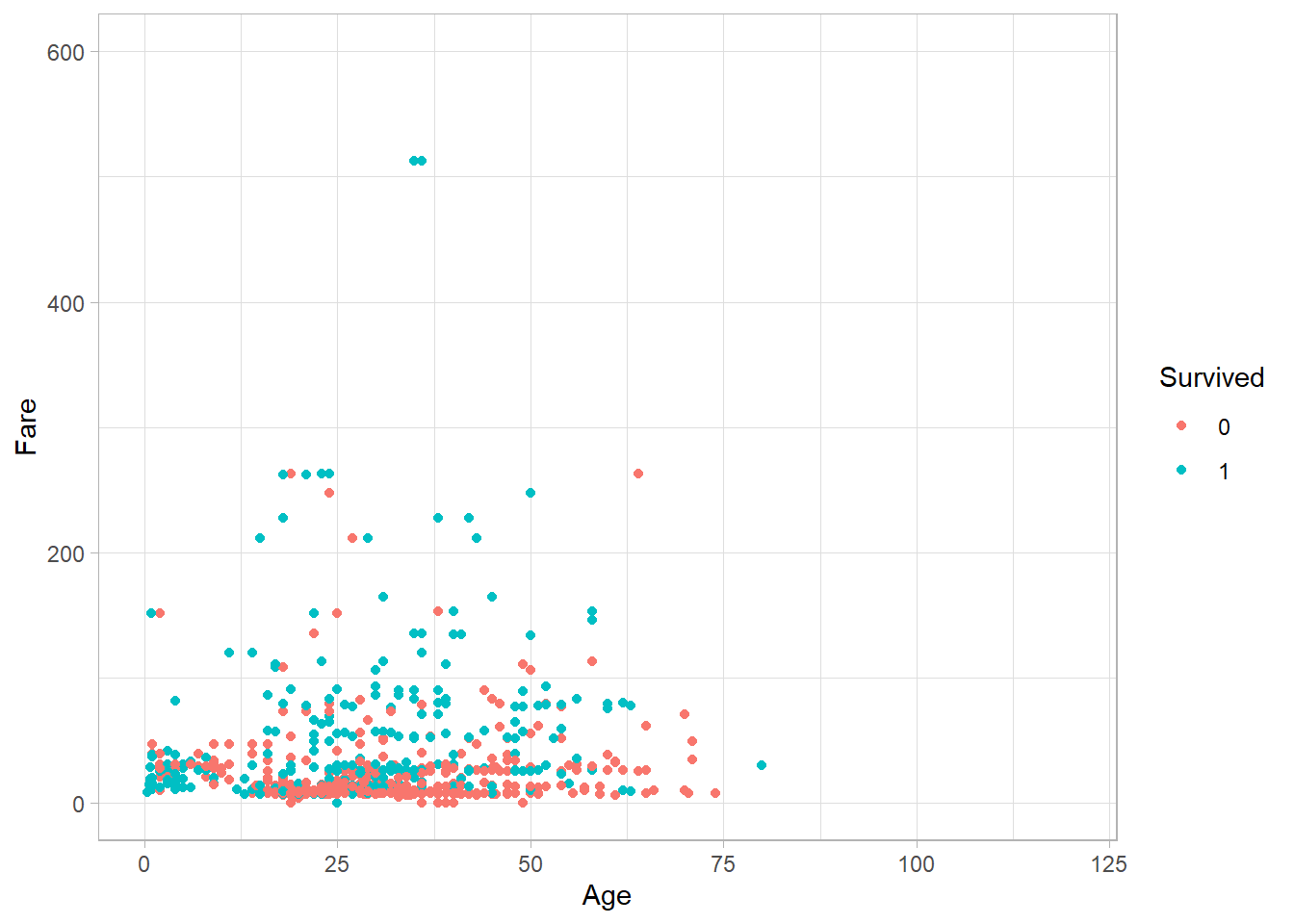
This sets the x-axis range from 0 to 120 and the y-axis range from 0 to 600. Any points outside these limits will be omitted, and R will issue a warning when the code is executed.
We can also change how values are scaled using functions that start
with scale_*(). For example, to show the x-axis in
log-10 scale:
# Apply log10 transformation to the x-axis
titanic_subset %>%
  ggplot(aes(x = Age,
             y = Fare,
             color = Survived)) +
  geom_point() +
  theme_light() +
  scale_y_log10()
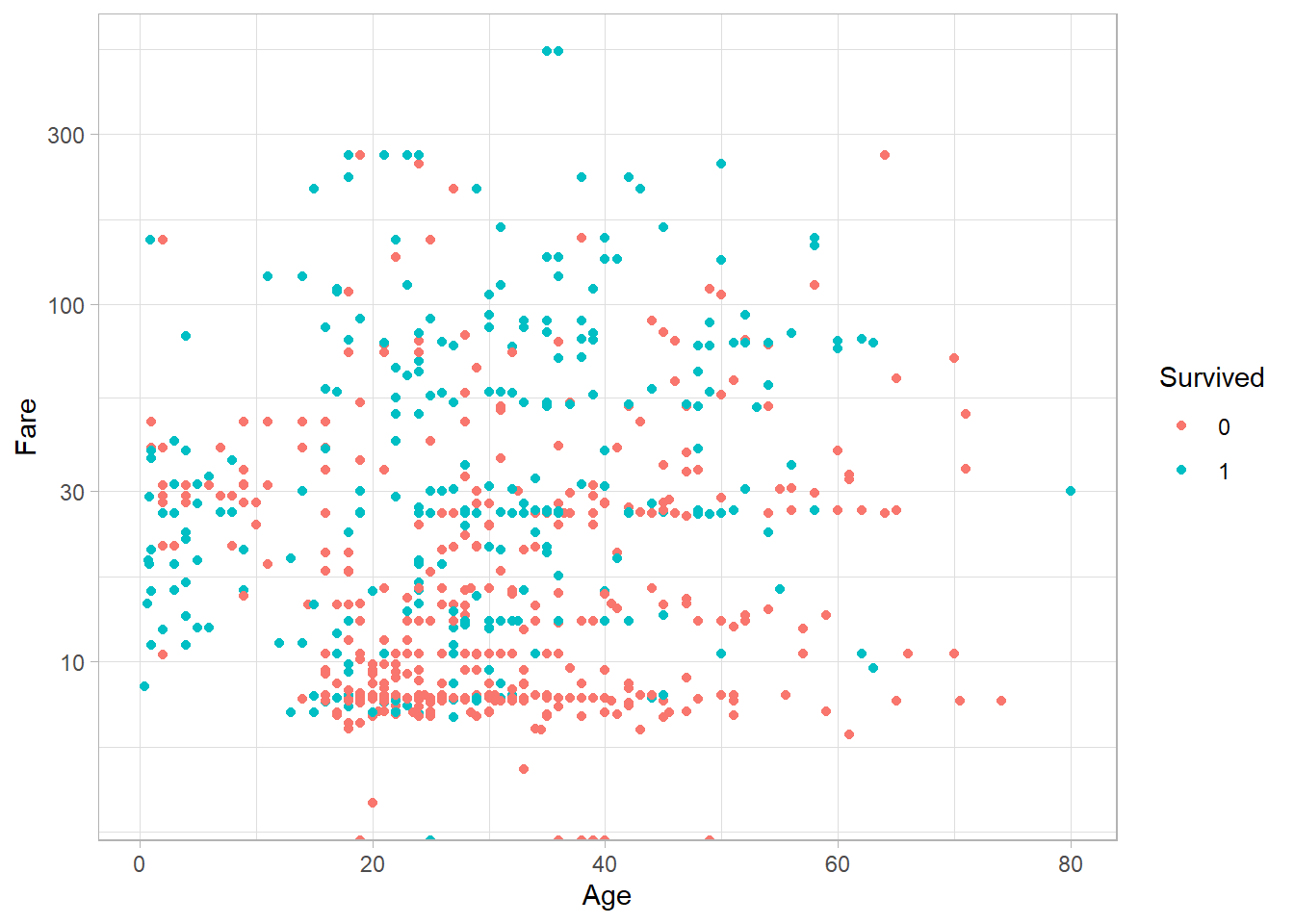
We often want to add titles and axis labels to make our plots easier
to understand. This is done using the labs() function:
# Add custom axis labels and title
titanic_subset %>%
  ggplot(aes(x = Age,
             y = Fare,
             color = factor(Survived))) +
  geom_point() +
  theme_light() +
  labs(
    x = "Passenger Age",
    y = "Ticket Fare",
    color = "Survived",
    title = "Ticket Fare by Age and Survival Status")
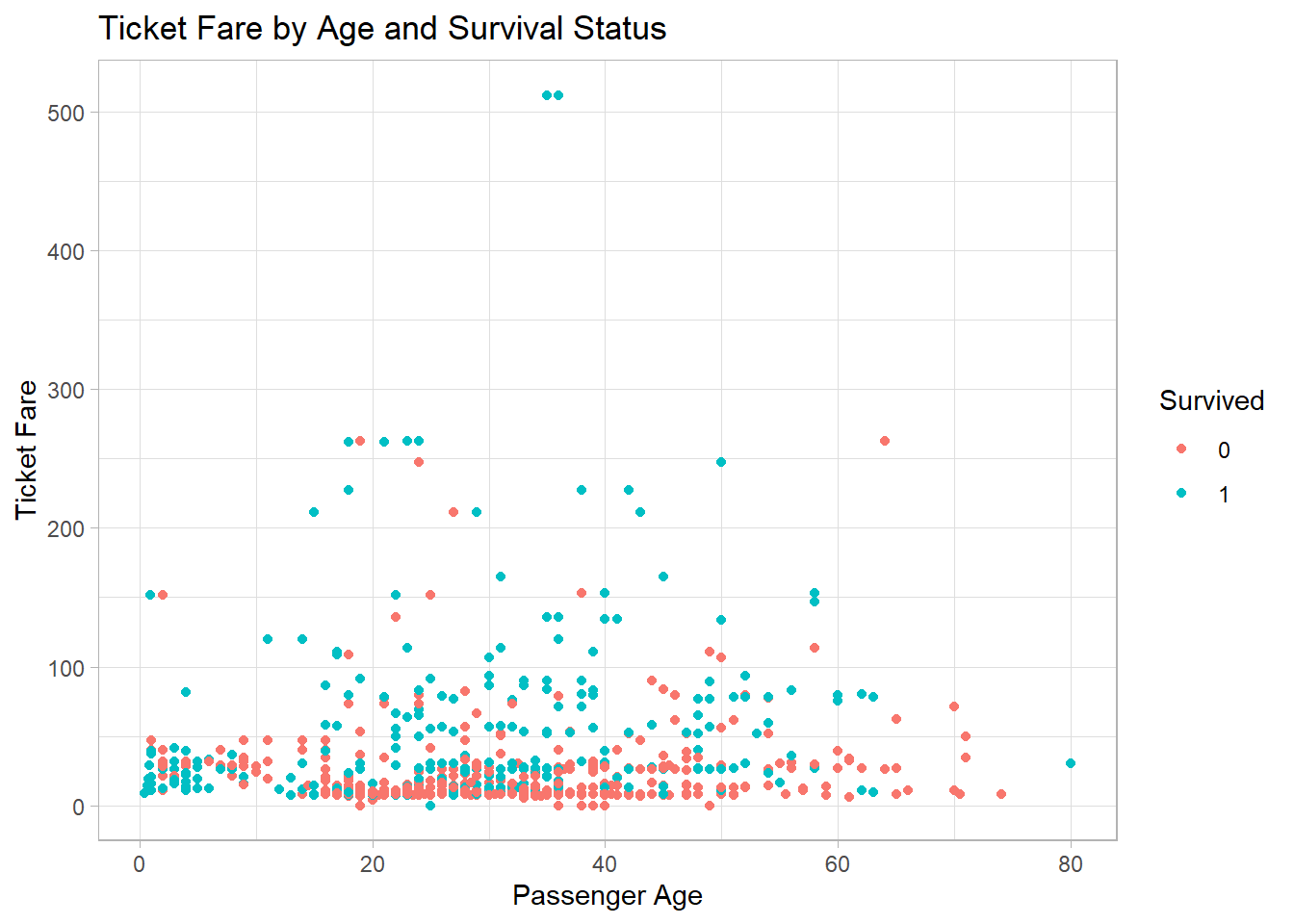
Here, labs() adds labels for the x-axis, y-axis,
legend, and title. Although not technically part of the core
aesthetics, labs() is conceptually linked to the
aesthetic layer because it describes how aesthetics are
communicated.
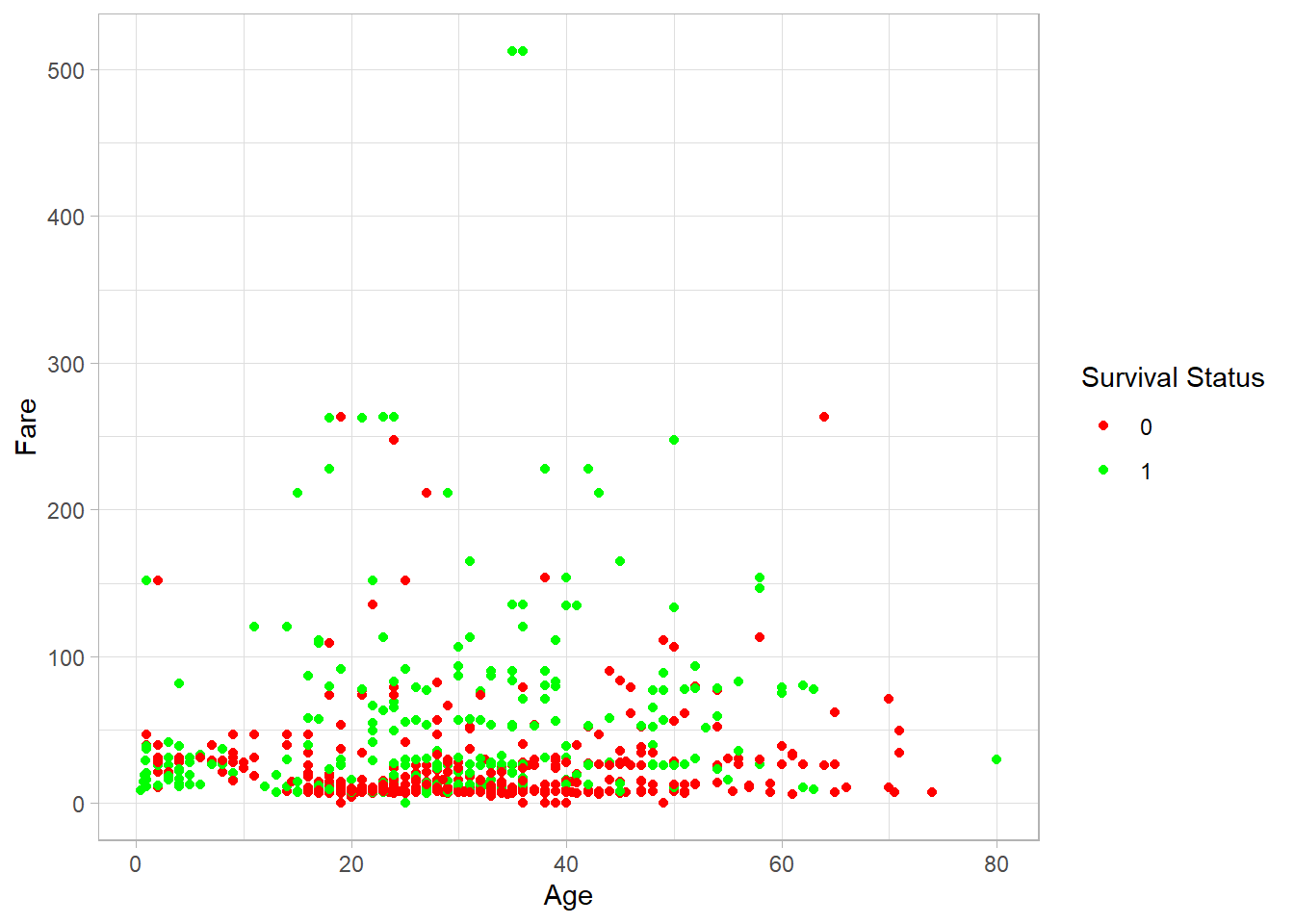
When a variable is mapped to an aesthetic, we can use the
scale_*_manual() family of functions to manually
control how values are displayed. Here’s how to change the colors
assigned to survival status:
# Manually set colors for the 'Survived' variable
titanic_subset %>%
  ggplot(aes(x = Age,
             y = Fare,
             color = factor(Survived))) +
  geom_point() +
  theme_light() +
  scale_color_manual(values = c("0" = "red", "1" = "green")) +
  labs(color = "Survival Status")
We can also manually set shapes, fill colors, transparency, and sizes using similar functions:
-
scale_fill_manual() -
scale_shape_manual() -
scale_alpha_manual() -
scale_size_manual()
For example, setting custom shapes:
# Manually set shapes for the 'Survived' variable
titanic_subset %>%
  ggplot(aes(x = Age,
             y = Fare,
             shape = factor(Survived))) +
  geom_point() +
  theme_light() +
  scale_shape_manual(values = c("0" = 1, "1" = 16)) +
  labs(shape = "Survival Status")
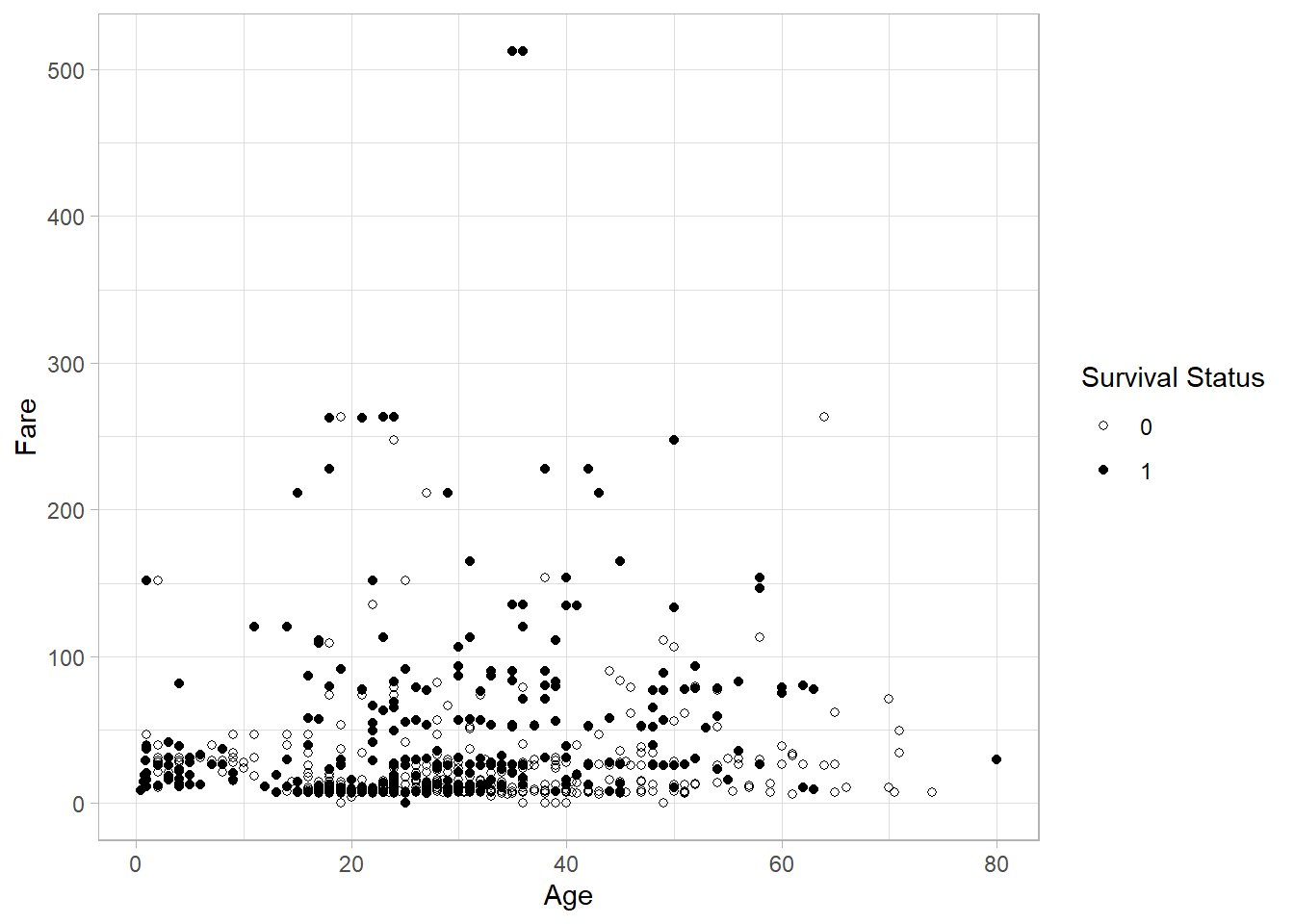
These tools give us full control over how your aesthetics appear in the plot, allowing you to adapt your graph for clarity, emphasis, or even publication styling.
There are still more aesthetics available beyond those mentioned
above, depending on the type of plot and driving the visual effect
one aims for. The full list of available aesthetics can be found on
the
ggplot2 official documentation site
or by using the ?aes help command in RStudio.
19.5 Geometry
So far, we have specified the data and the aesthetics we want to use in a graph, but we have not yet specified what kind of plot we want to create. Should it be a scatter plot, a histogram, or a bar chart?
In ggplot2, we define the type of plot using a function
that starts with geom_*(). For example, earlier we used
geom_point() to create a scatter plot. We could have
used geom_line() to create a line plot instead.
(Although it might not yield any useful insights in our Titanic
data!) The geometry function determines the form of our
plot.
There are many types of geometries available in
ggplot2. In this section, we will focus on some of the
most common ones, namely:
Scatter plots
Histograms and density plots
Bar plots
Box plots
Line plots
19.5.1 Scatter Plots
We already created a scatter plot at the beginning of this chapter
using the geom_point() function. A scatter plot is
ideal when we want to display two numeric variables on the axes.
We can add more variables to a scatter plot by changing an element
of the plotted points. For example, we previously used the
variable Survived to color the points - we could
similarly change shape.
19.5.2 Histogram and Density Plots
In the Statistical Distributions chapter, we introduced histograms and density plots as tools to visualize the distribution of a variable. Now let’s see how to create them.
We use geom_histogram() and
geom_density() to generate histogram and density
plots respectively. These are one-dimensional plots, so we only
need to specify the x variable inside the
aes() function:
# Histogram of Age
titanic_subset %>%
  ggplot(aes(x = Age)) +
  geom_histogram() +
  theme_light()
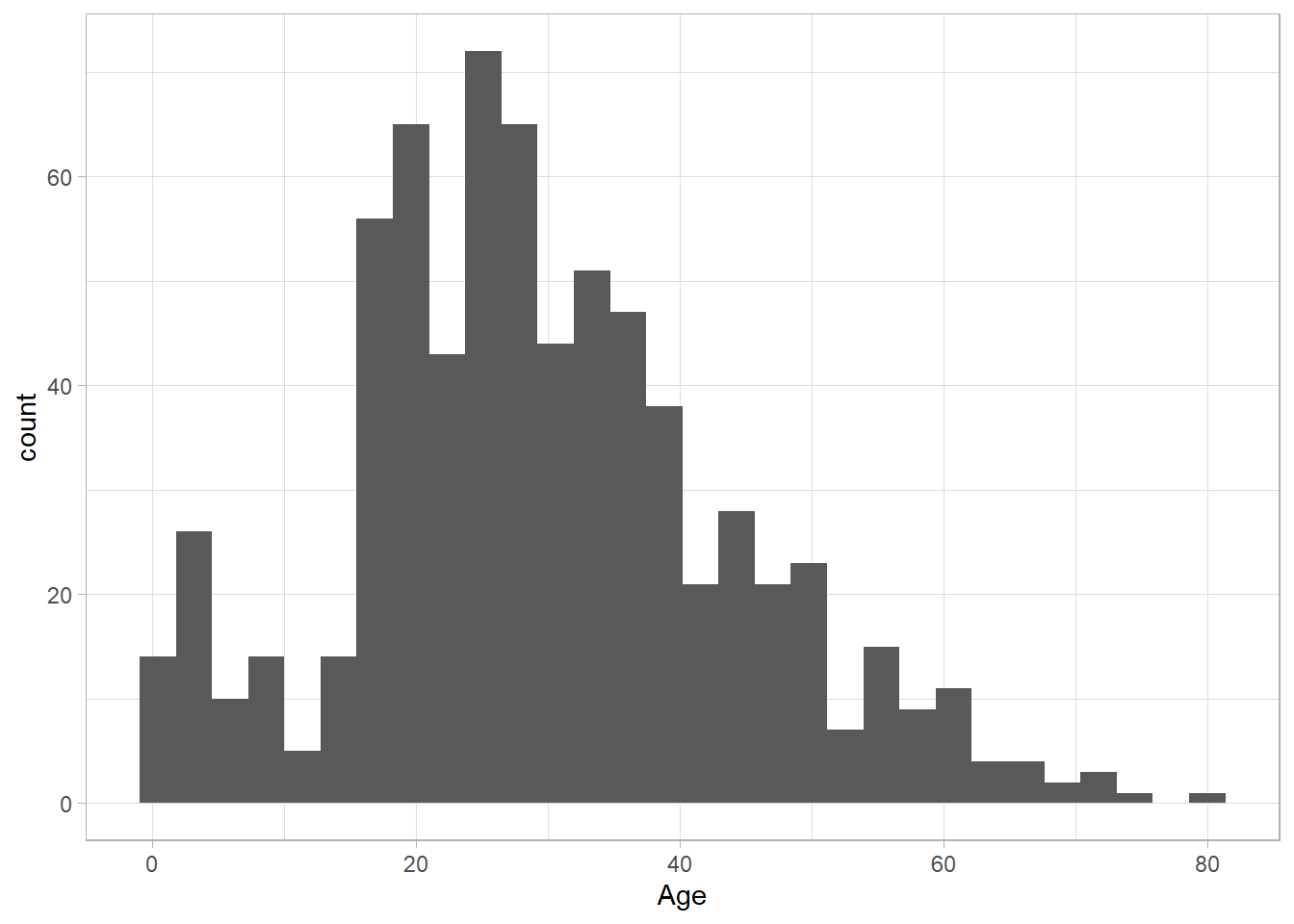
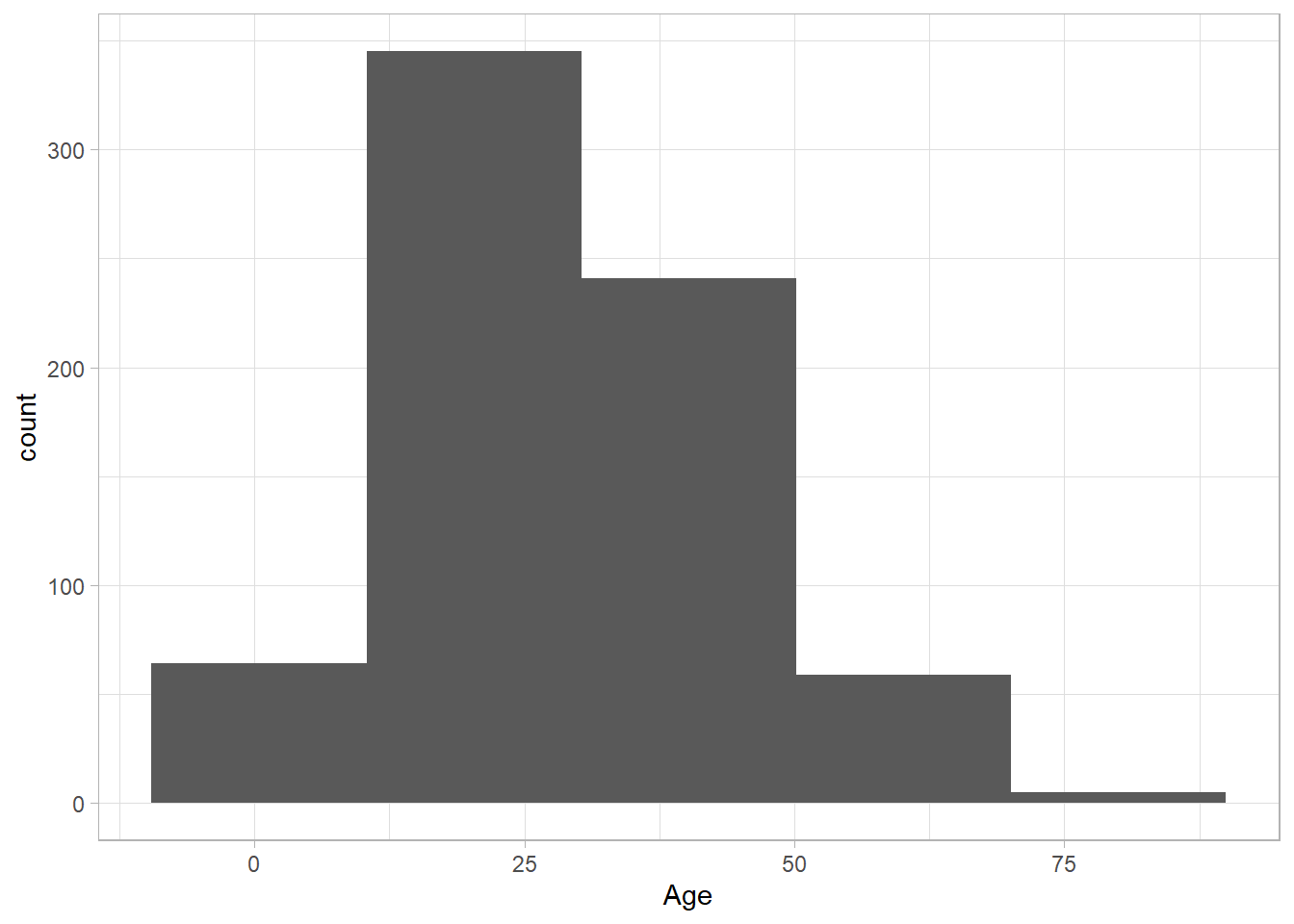
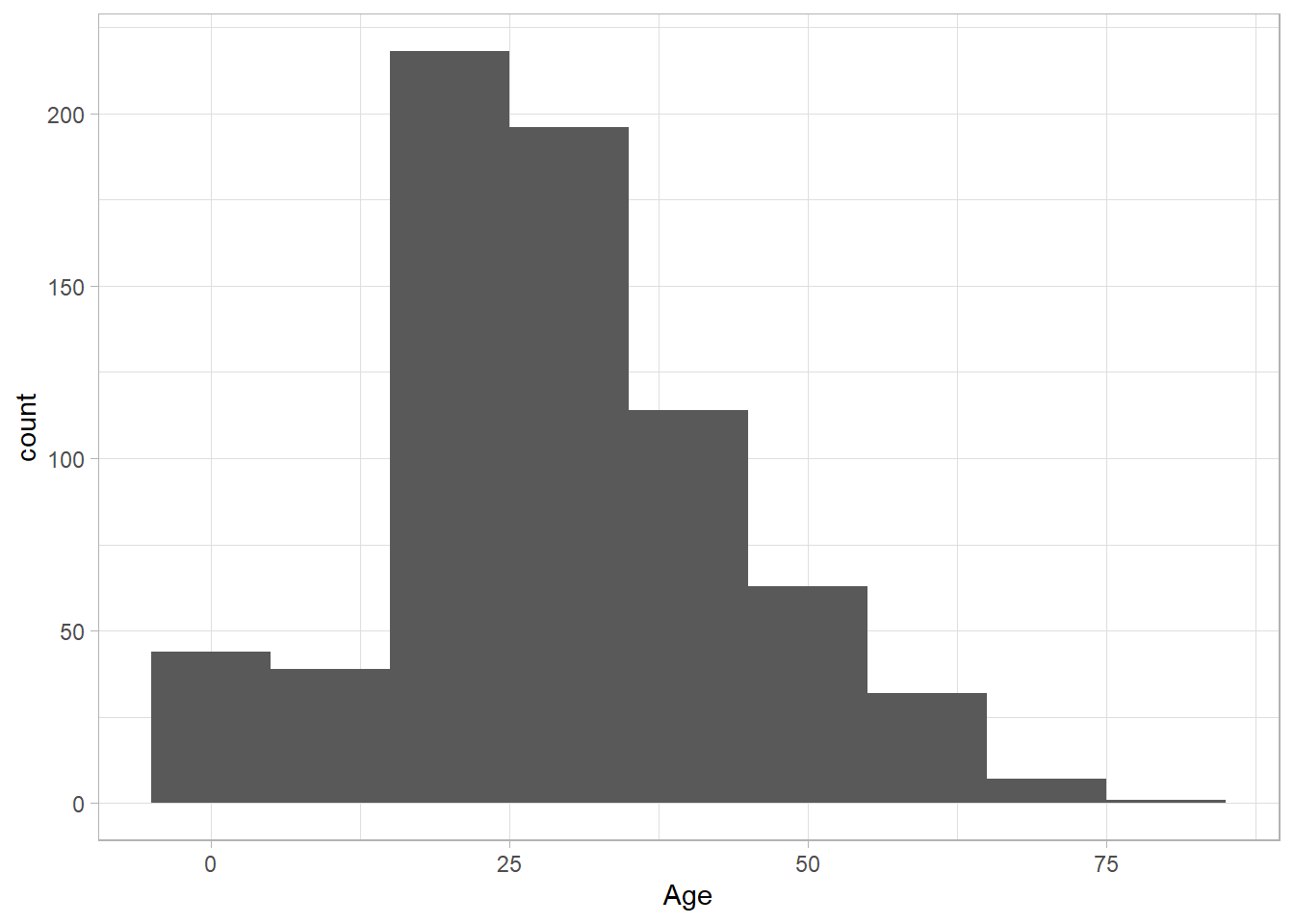
The distribution of Age looks roughly normal. We can change the
granularity of the histogram by using the (number of)bins
or binwidth arguments in
geom_histogram(). We only need to set one of the two,
as the other one will be set automatically:
# Histogram with 5 bins
titanic_subset %>%
  ggplot(aes(x = Age)) +
  geom_histogram(bins = 5) +
  theme_light()
# Histogram with bin width of 10
titanic_subset %>%
  ggplot(aes(x = Age)) +
  geom_histogram(binwidth = 10) +
  theme_light()
We can also explore the distribution of Fare, using a
density plot.
# Density Plot of Fare
titanic_subset %>%
  ggplot(aes(x = Fare)) +
  geom_density() +
  theme_light()
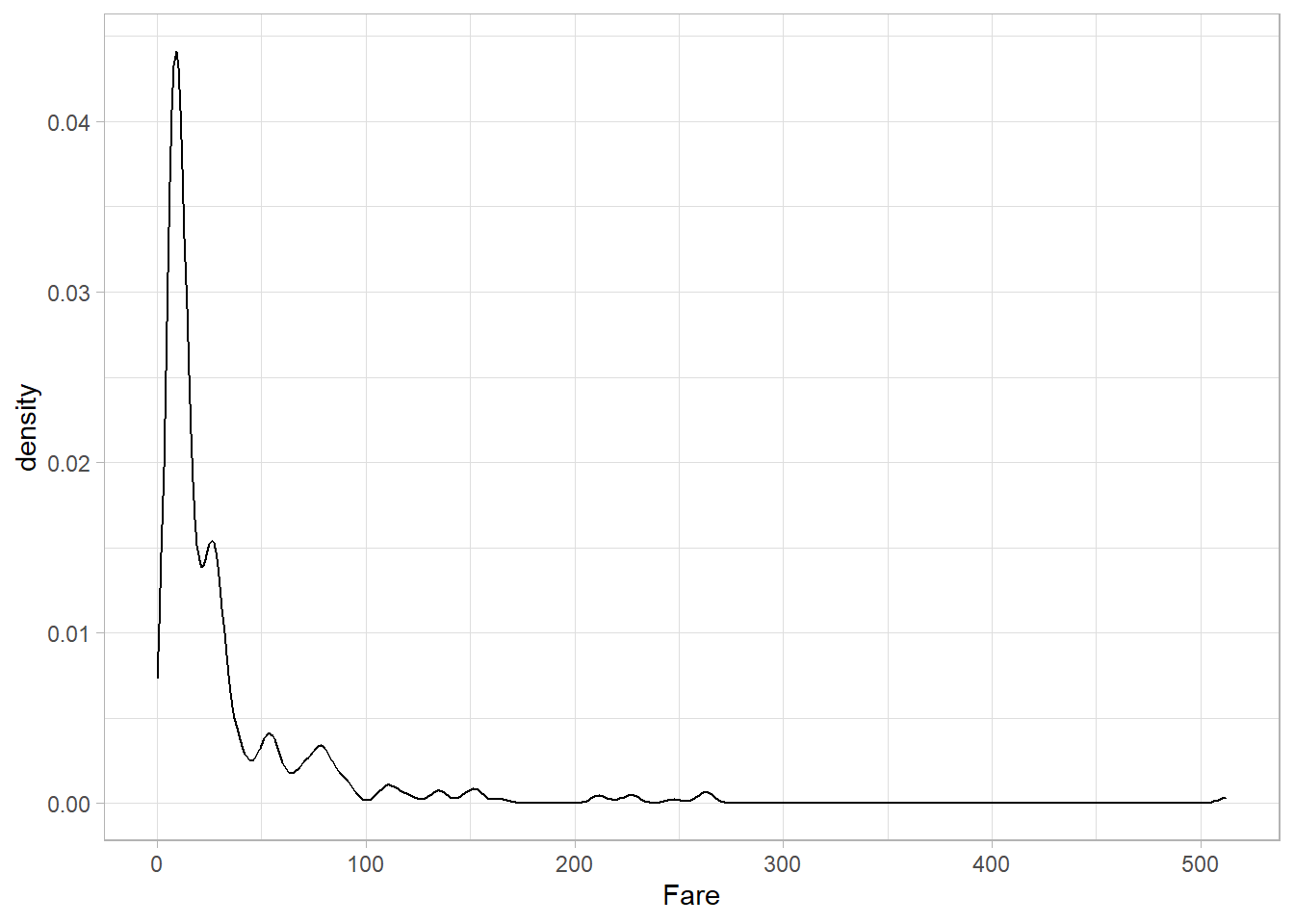
The variable Fare seems to follow a log-normal
distribution, with a long right tail.
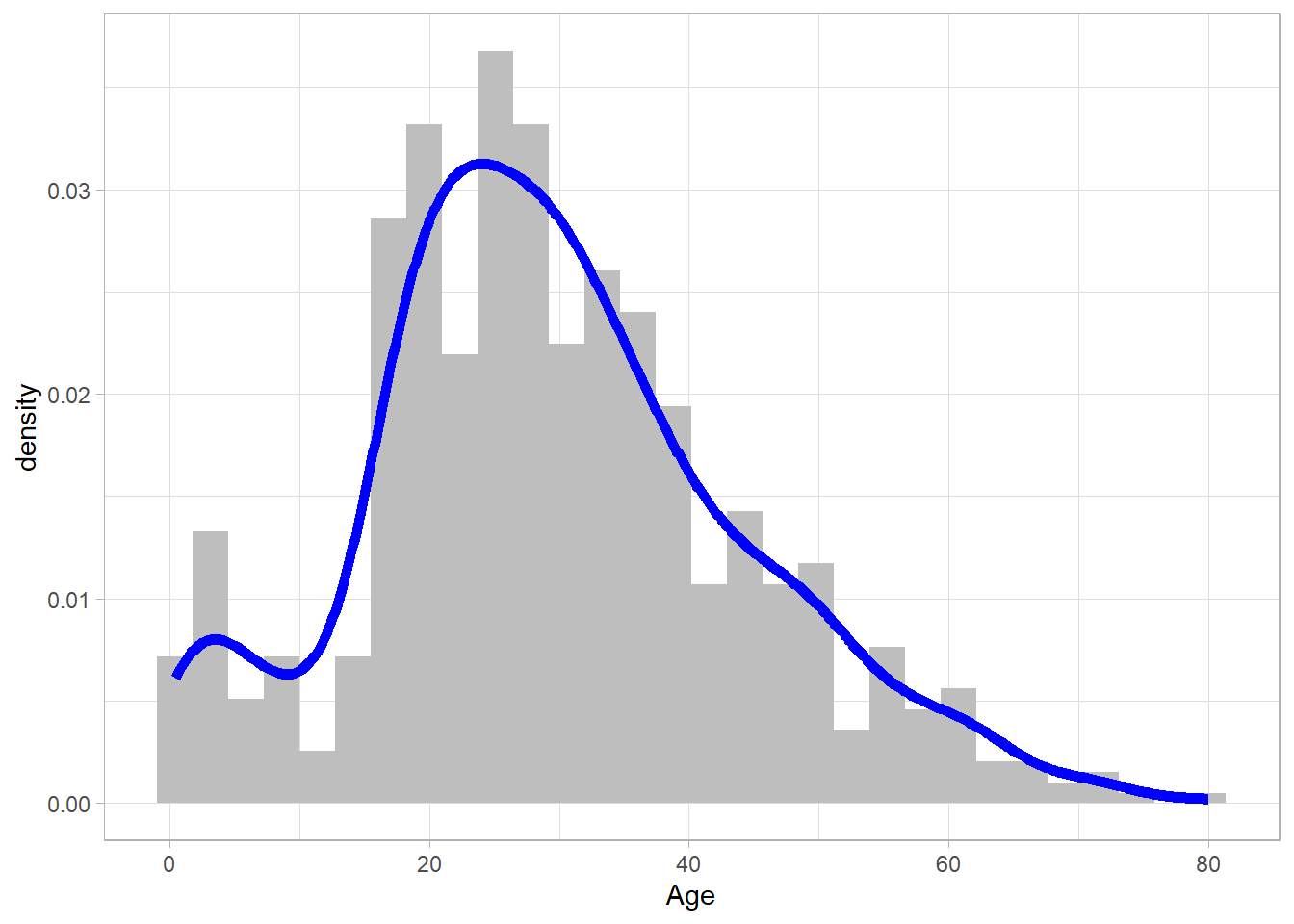
We can also combine these two types of geometries into one plot —
but in that case, we need to manually specify the y-axis. A
histogram shows counts on the y-axis, while a density plot shows
densities. To combine them, we use both
geom_histogram() and geom_density(), and
set the y aesthetic inside aes() to the
somewhat unusual expression ..density... This special
notation tells ggplot2 to scale the histogram so that
it represents a density rather than raw counts, allowing it to
align correctly with the density curve. We also modify the
appearance to make the plot clearer and demonstrate how different
aesthetics can be combined:
# Combined Histogram and Density Plot
titanic_subset %>%
  ggplot(aes(x = Age, y = ..density..)) +
  geom_histogram(fill = "grey") +
  geom_density(size = 2, color = "blue") +
  theme_light()
19.5.3 Bar plots
Bar plots are an excellent choice for visualizing categorical
data. To create a bar plot, we use the
geom_bar() function. As with histograms and density
plots, we need to include only one variable on the x-axis. Let’s
plot the Survived variable:
# Bar plot
titanic_subset %>%
  ggplot(aes(x = Survived)) +
  geom_bar() +
  theme_light()
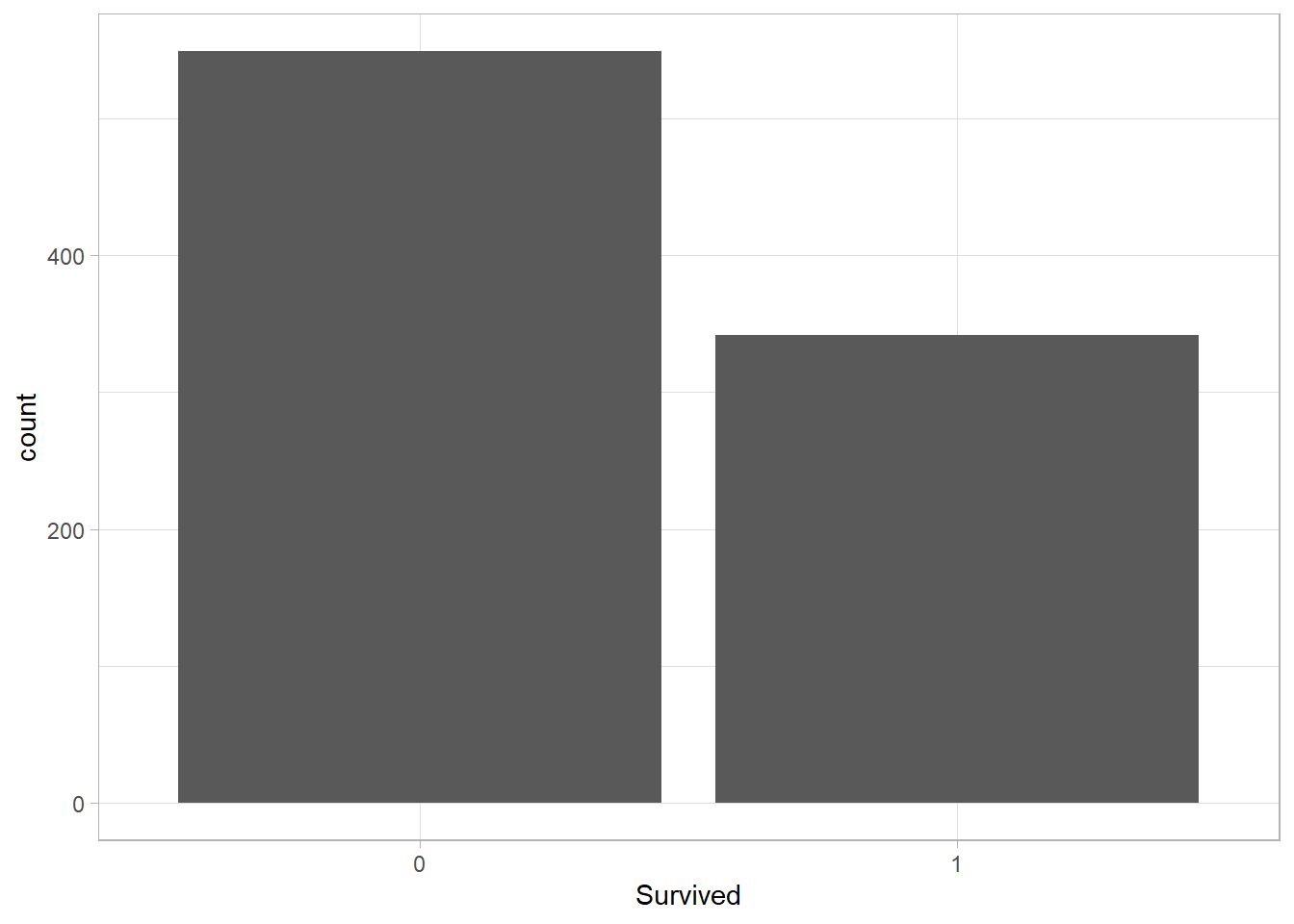
Similar to geom_histogram(), the y-axis here
represents the number of observations. In fact, a bar plot can be
thought of as a histogram for categorical variables, where each
“bin” corresponds to a specific category. This plot shows that
most passengers on the Titanic did not survive.
Instead of plotting counts on the y-axis, we may sometimes want to
show a summary statistic. For instance, the average ticket price
(Fare) within each category. In this case, the x-axis
still displays the categories, but the y-axis will show a
numerical value. To do this, we use the
group_by() and summarize() functions
from the dplyr package to transform the data before
plotting. While this is not strictly part of ggplot2,
it’s an important reminder that data often needs to be manipulated
into the right shape before plotting.
Let’s first compute the average ticket price for each category of
Survived:
# Average fare per category
average_fare <- titanic_subset %>%
  group_by(Survived) %>%
  summarize(Average_Fare = mean(Fare))

# Print the results
average_fare
# A tibble: 2 × 2
Survived Average_Fare
<fct> <dbl>
1 0 22.1
2 1 48.4
Now that we have a summary table, we can fill in both
x and y inside aes(), just
like we would for a scatter plot with two numeric variables.
However, geom_bar() won’t work when we explicitly
supply a y variable and so we use the
geom_col() function instead:
# Plot of Average Fare per Category
average_fare %>%
  ggplot(aes(x = Survived, y = Average_Fare)) +
  geom_col() +
  theme_light()
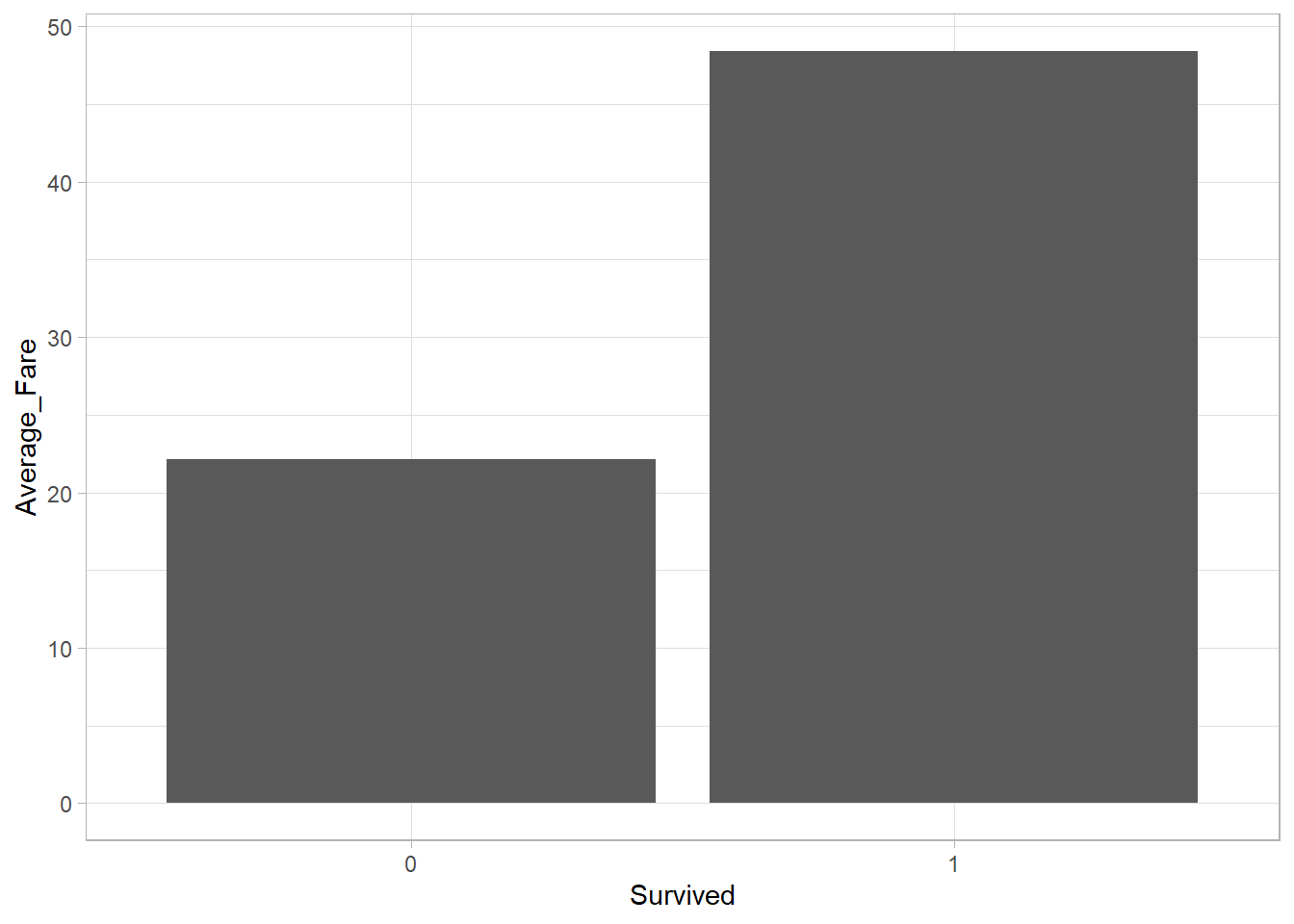
The average ticket price among survivors was higher than among non-survivors. This is an interesting insight as it may suggest that passengers who paid more had a higher priority when boarding the life boats or were located in more favorable areas of the ship (closer to the life boats perhaps?) before it sank.
19.5.4 Box plots
To visualize the distribution of a numeric variable, we previously used histograms and density plots. Another way to do this is with a box plot. As the name suggests, a box plot is essentially a… plot that includes a box, which represents the values close to the center of the distribution.
A box plot typically displays five summary statistics known as the five-number summary. These include:
-
Minimum: The smallest value
-
First Quartile (Q1): The 25th percentile, marking the lower edge of the box
-
Median (Q2): The 50th percentile, shown by the line inside the box
-
Third Quartile (Q3): The 75th percentile, marking the upper edge of the box
-
Maximum: The largest value
Let’s create a box plot for the Age variable using
geom_boxplot():
# Box plot
titanic_subset %>%
  ggplot(aes(x = Age)) +
  geom_boxplot() +
  theme_light()
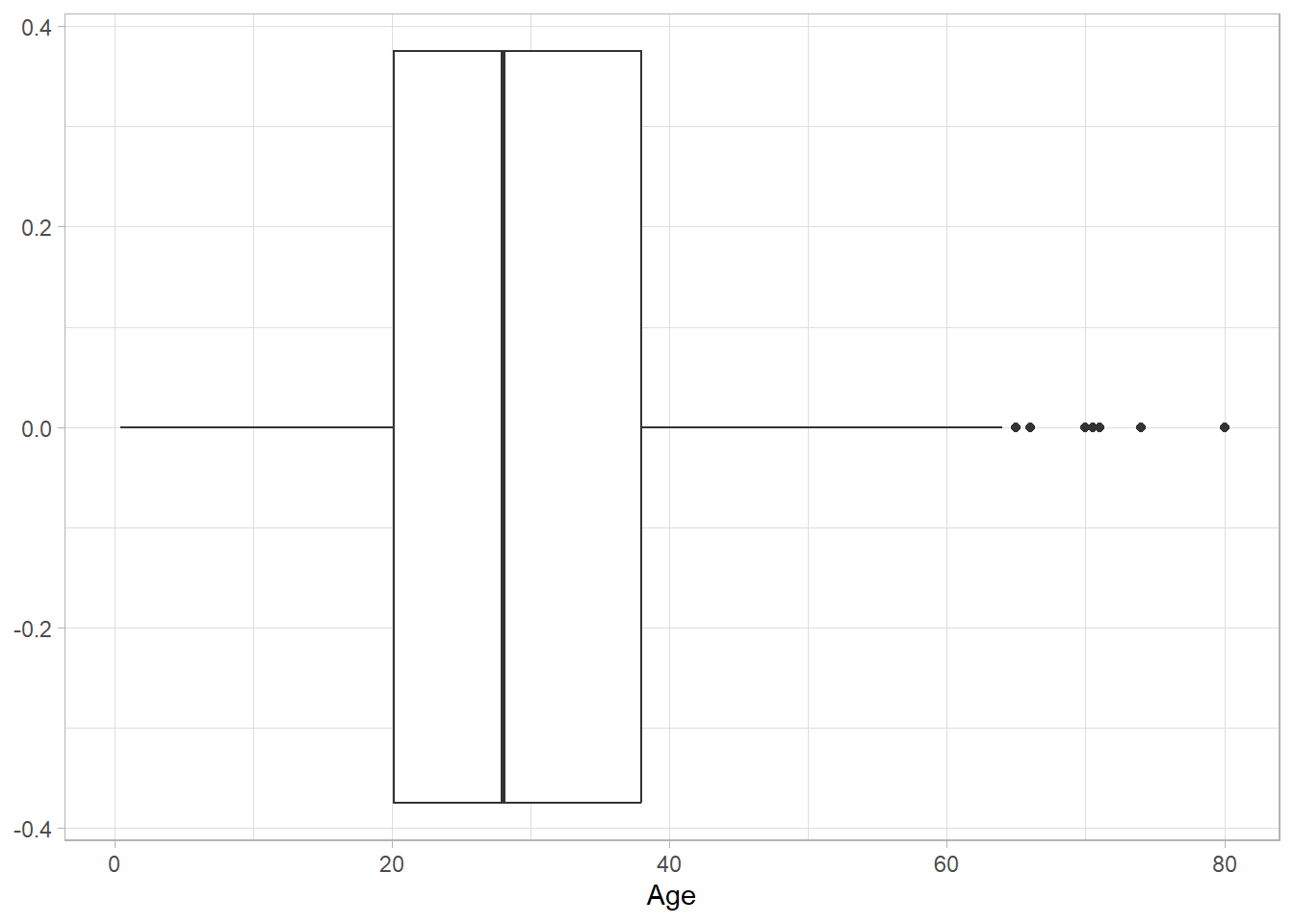
The black horizontal line represents the median. The box contains
all values between the first and third quartiles, while the black
dots outside the box are outliers. This plot shows that the
Age variable is fairly symmetric, with just a few
outliers on the right-hand side.
While histograms or density plots are preferred when visualizing
the distribution of a single variable, box plots are excellent for
comparing distributions across categories. To do this, we place
the numeric variable on the y-axis and the categorical variable on
the x-axis. For instance, the following plot shows the
distribution of Age across survival categories:
# Box plot
titanic_subset %>%
  ggplot(aes(x = Survived, y = Age)) +
  geom_boxplot() +
  theme_light()
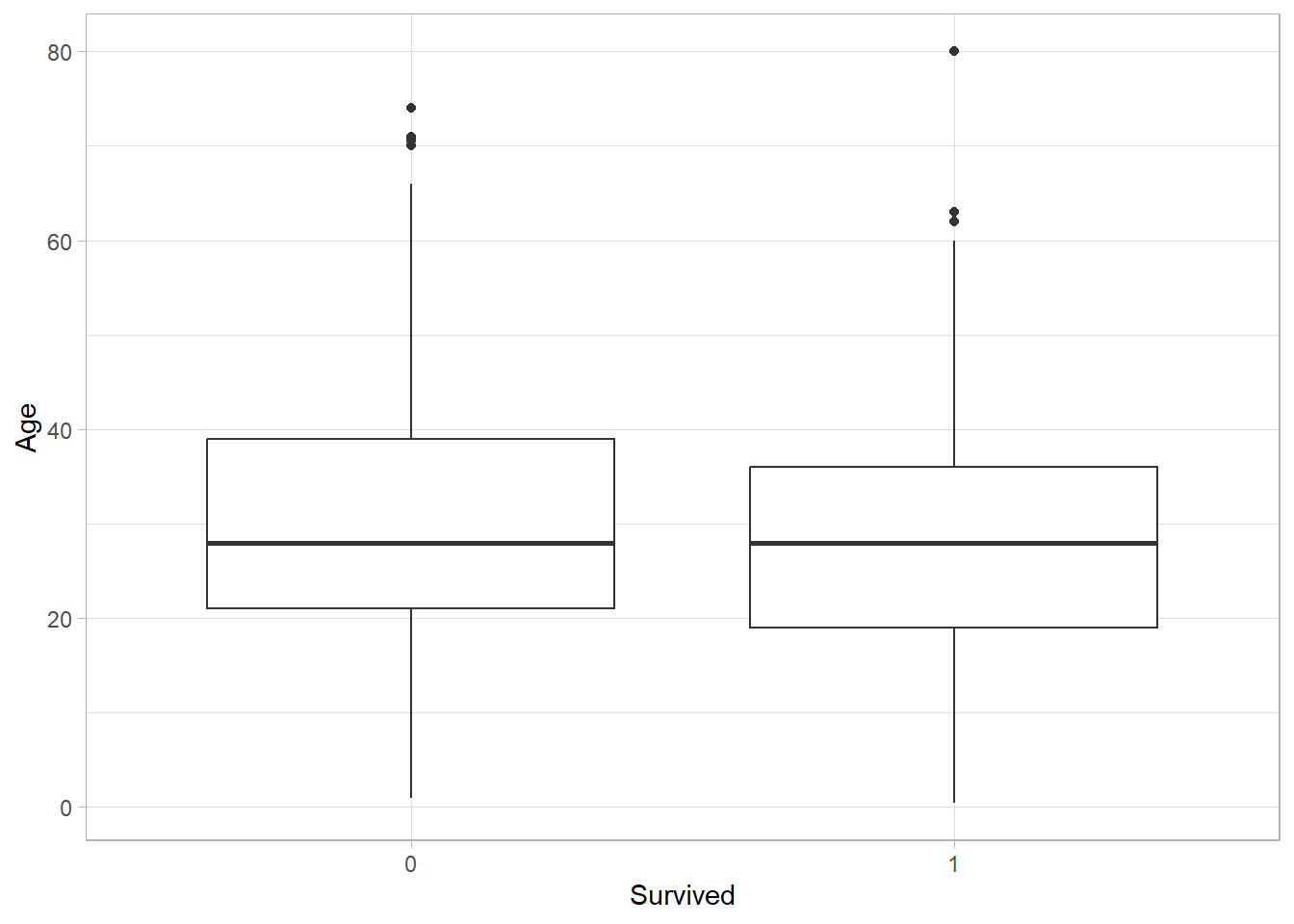
The centers of the two distributions are nearly at the same level, with the distribution of non-survivors being slightly higher. This might reflect the fact that older passengers were slightly less likely to survive the disaster.
19.5.5 Line Plots
Line plots are another useful type of plot, although we haven’t encountered them in previous chapters. As the name suggests, a line plot connects data points with a line, helping to visualize trends or changes over time or ordered values.
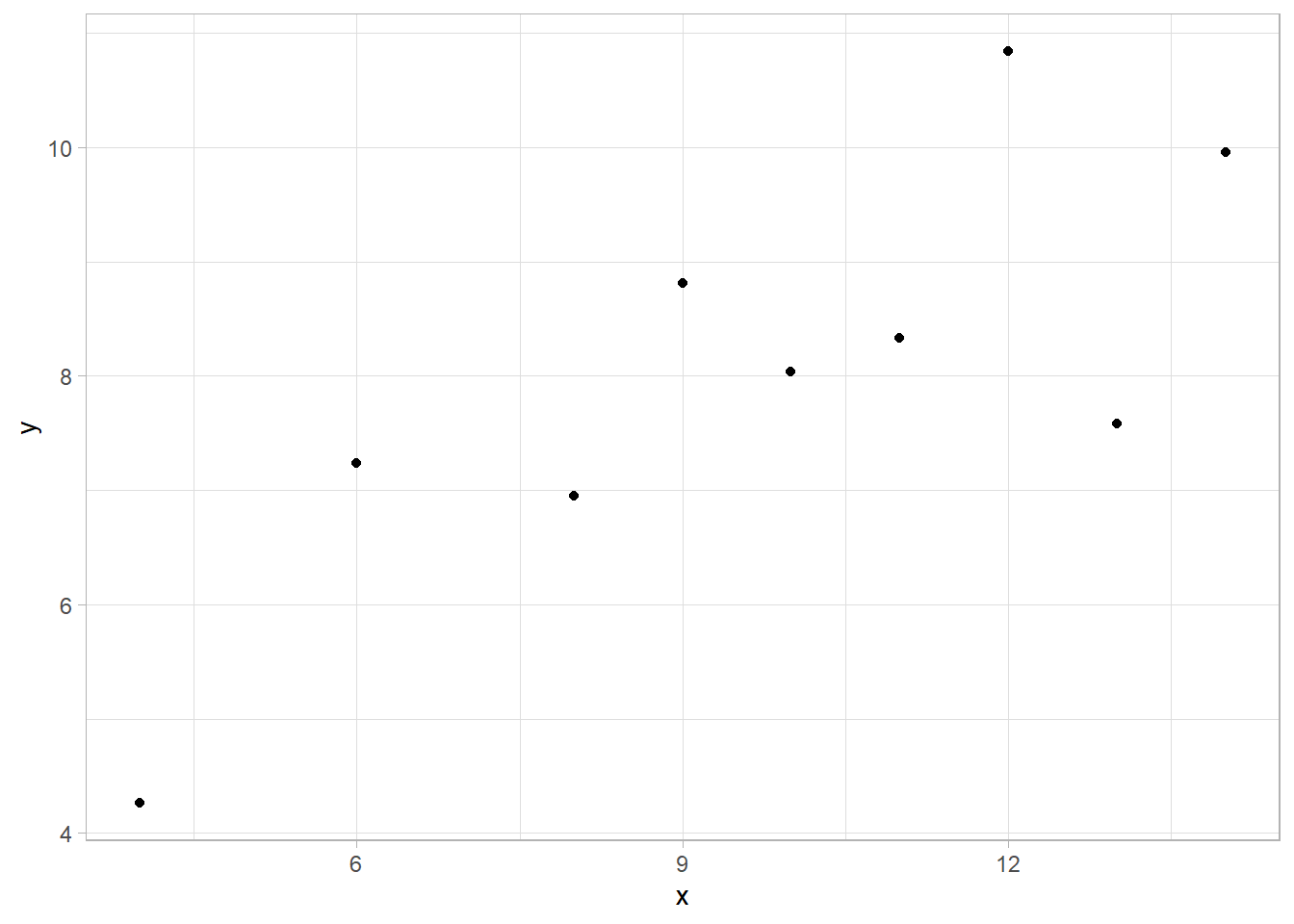
To see how this works, let’s manually create a simple dataset with just a few data points:
# Create a simple data set
simple_data_set <- tibble(
  x = c(10, 8, 13, 9, 11, 14, 6, 4, 12),
  y = c(8.04, 6.95, 7.58, 8.81, 8.33, 9.96, 7.24, 4.26, 10.84))
Since we have two numeric variables, we can first create a scatter
plot using the geom_point() function:
# Scatter plot
simple_data_set %>%
  ggplot(aes(x = x, y = y)) +
  geom_point() +
  theme_light()
For a line plot, we use the geom_line() function
instead of geom_point(). This connects the data
points with a line:
# Line plot
simple_data_set %>%
  ggplot(aes(x = x, y = y)) +
  geom_line() +
  theme_light()
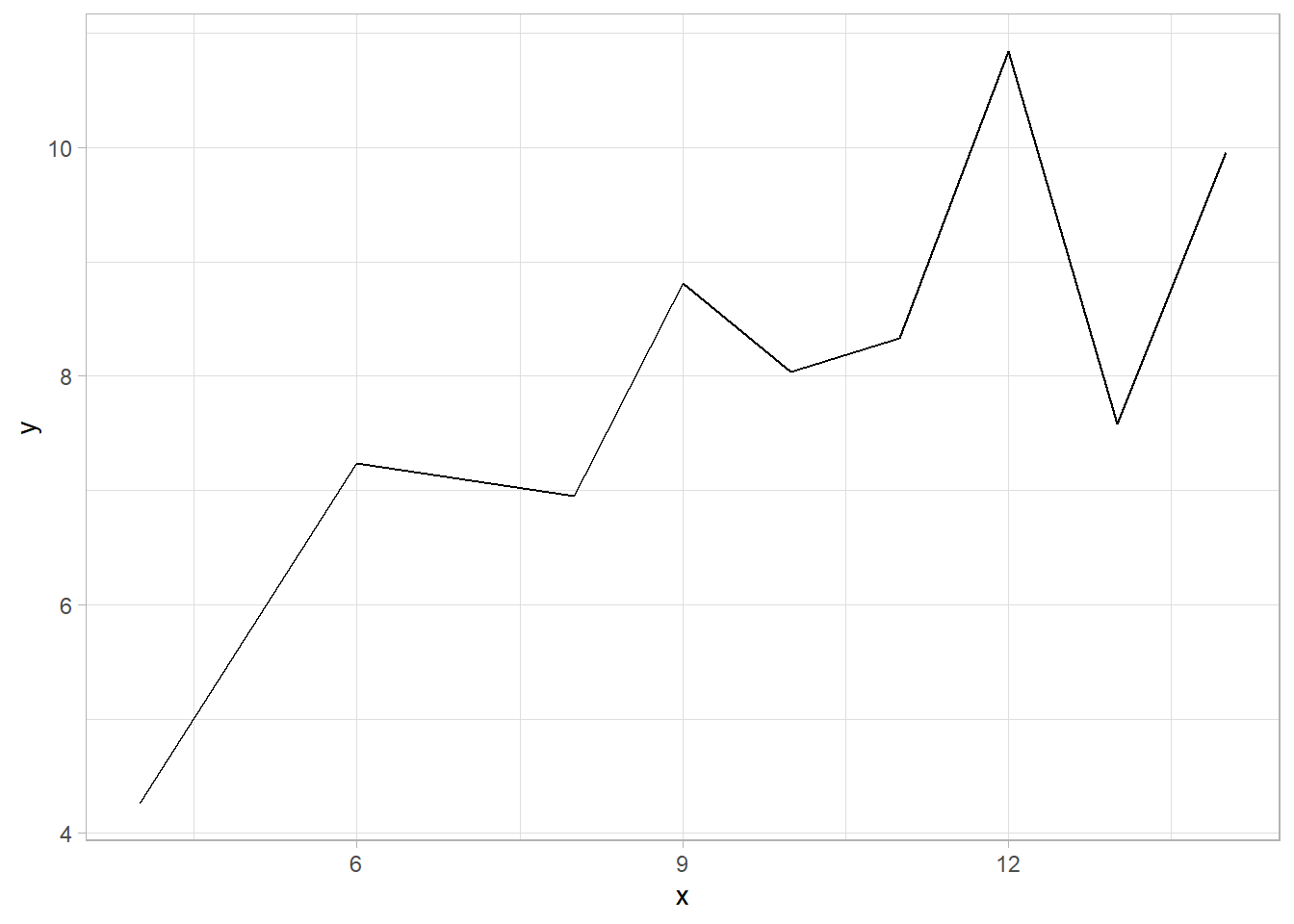
In the line plot above, the data points are not shown—only the
line appears. To include both the individual points
and the connecting line, we simply add the
geom_point() function along with
geom_line():
# Scatter-Line plot
simple_data_set %>%
  ggplot(aes(x = x, y = y)) +
  geom_line() +
  geom_point() +
  theme_light()
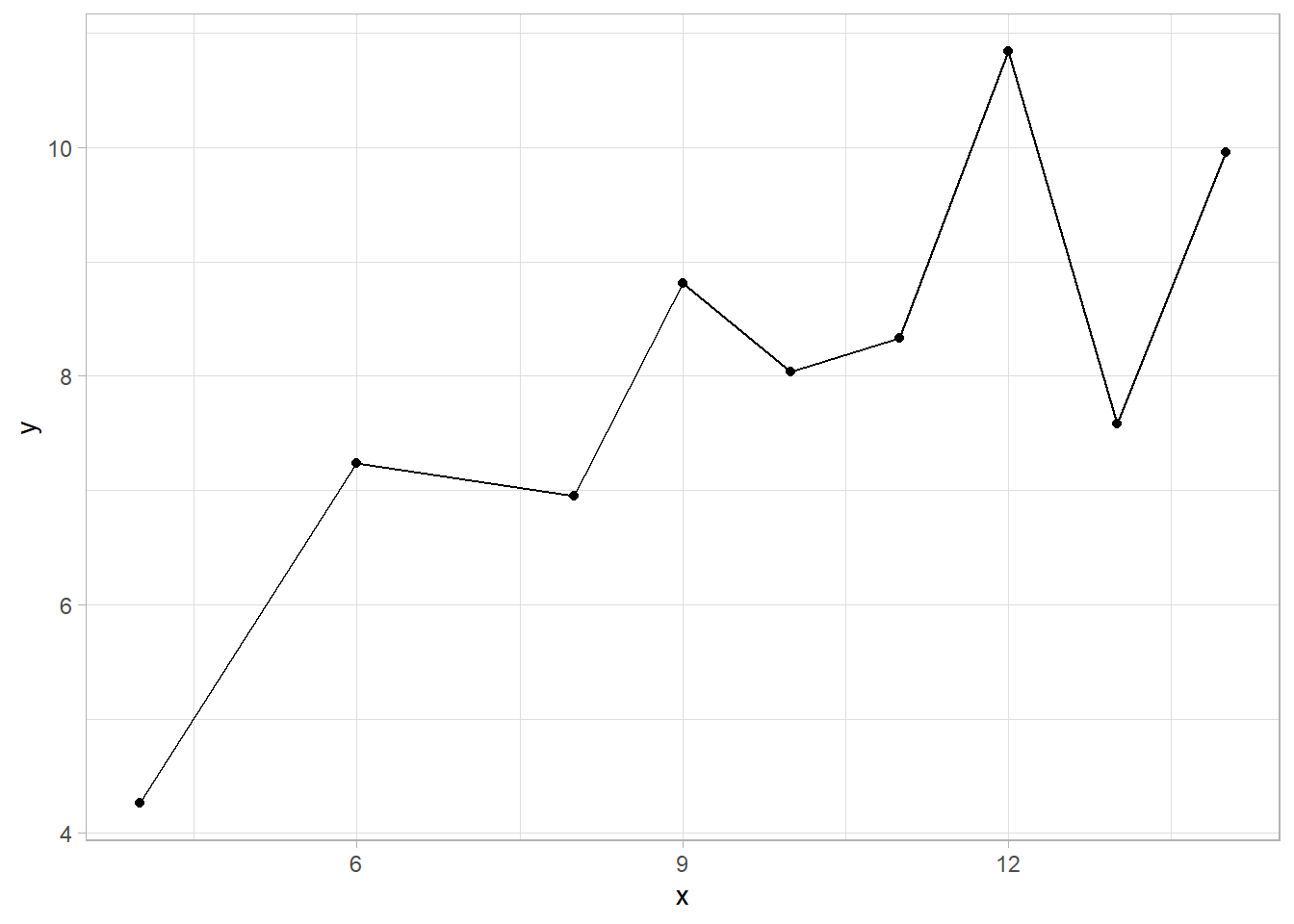
This combined plot is often used to show both the trend (line) and the individual values (points), especially when the number of points is small and we want to see both clearly.
19.6 Facets
As we mentioned earlier, facets can be considered a separate, fifth plot element. Facets allow us to break down a plot into multiple subplots based on the values of at least one categorical variable. While we could always create separate plots manually for each category, facets provide a convenient way to generate multiple plots at once and display them side by side, making comparisons easier and more intuitive.
In ggplot2, there are two main functions for creating
facets: facet_grid() and facet_wrap(). The
key difference between them lies in how they organize the resulting
plots.
-
facet_grid()arranges plots in a grid format. One categorical variable is mapped to the rows and another to the columns. This is ideal for visualizing interactions between two categorical variables. -
facet_wrap(), in contrast, uses a single categorical variable and wraps the plots into a series, typically laid out in multiple rows or columns. This is especially useful when there’s only one categorical variable involved.
To understand how these two functions work, let’s revisit the
scatter plot we created earlier in the chapter. This time, we add
facet_grid() to break the plot into two separate
scatter plots—one for each category of the
Survived variable:
# Scatter plots with grid (rows)
titanic_subset %>%
  ggplot(aes(x = Age, y = Fare)) +
  geom_point() +
  theme_light() +
  facet_grid(Survived ~ .)
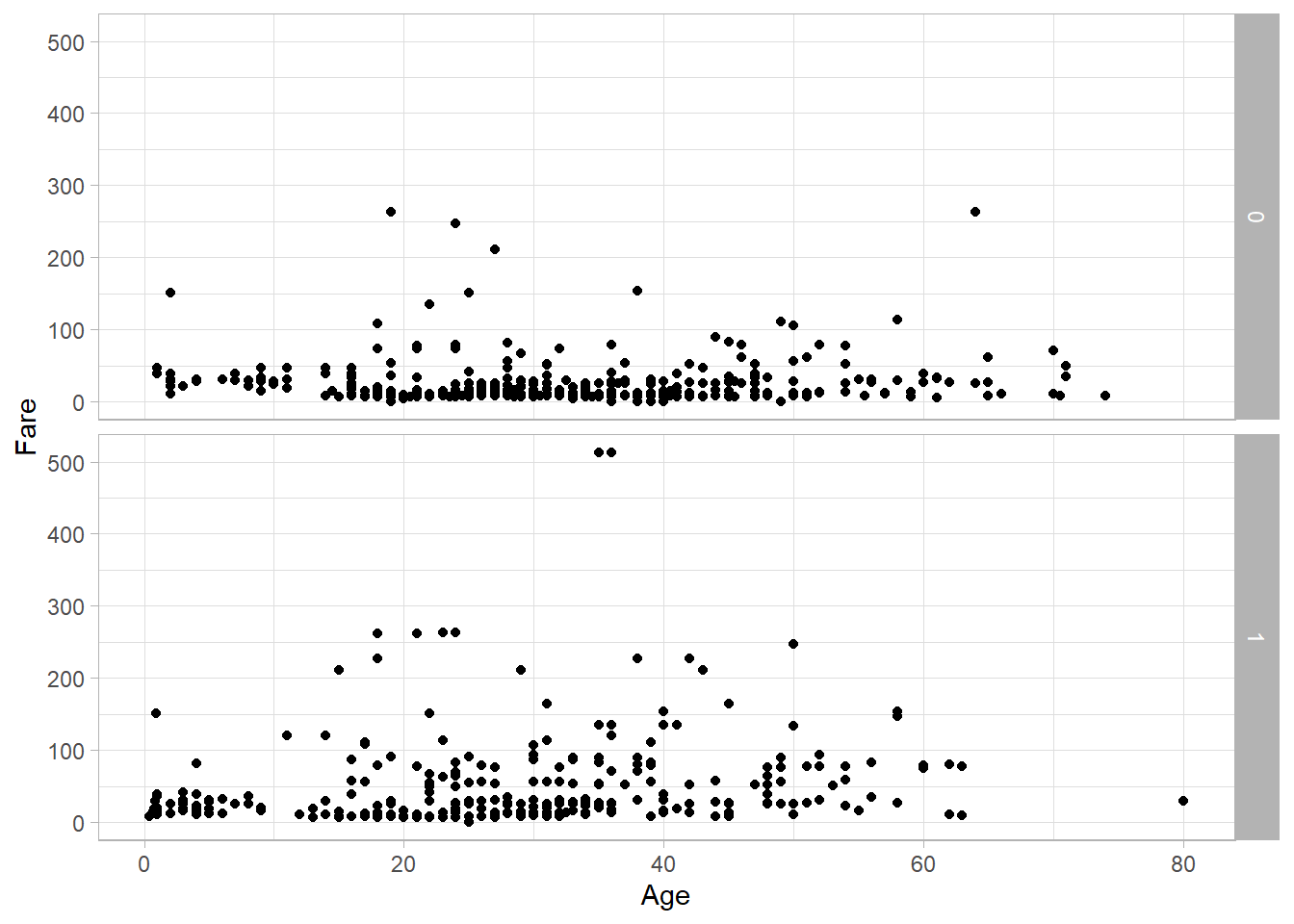
With both facet_grid() and facet_wrap(),
we use the tilde (~) symbol to define the layout of the
plots. Since Survived appears on the left-hand side
here, the plots are arranged in rows. If we want the plots arranged
in columns, we simply place Survived on the right-hand
side:
# Scatter plots with grid (columns)
titanic_subset %>%
  ggplot(aes(x = Age, y = Fare)) +
  geom_point() +
  theme_light() +
  facet_wrap(. ~ Survived)
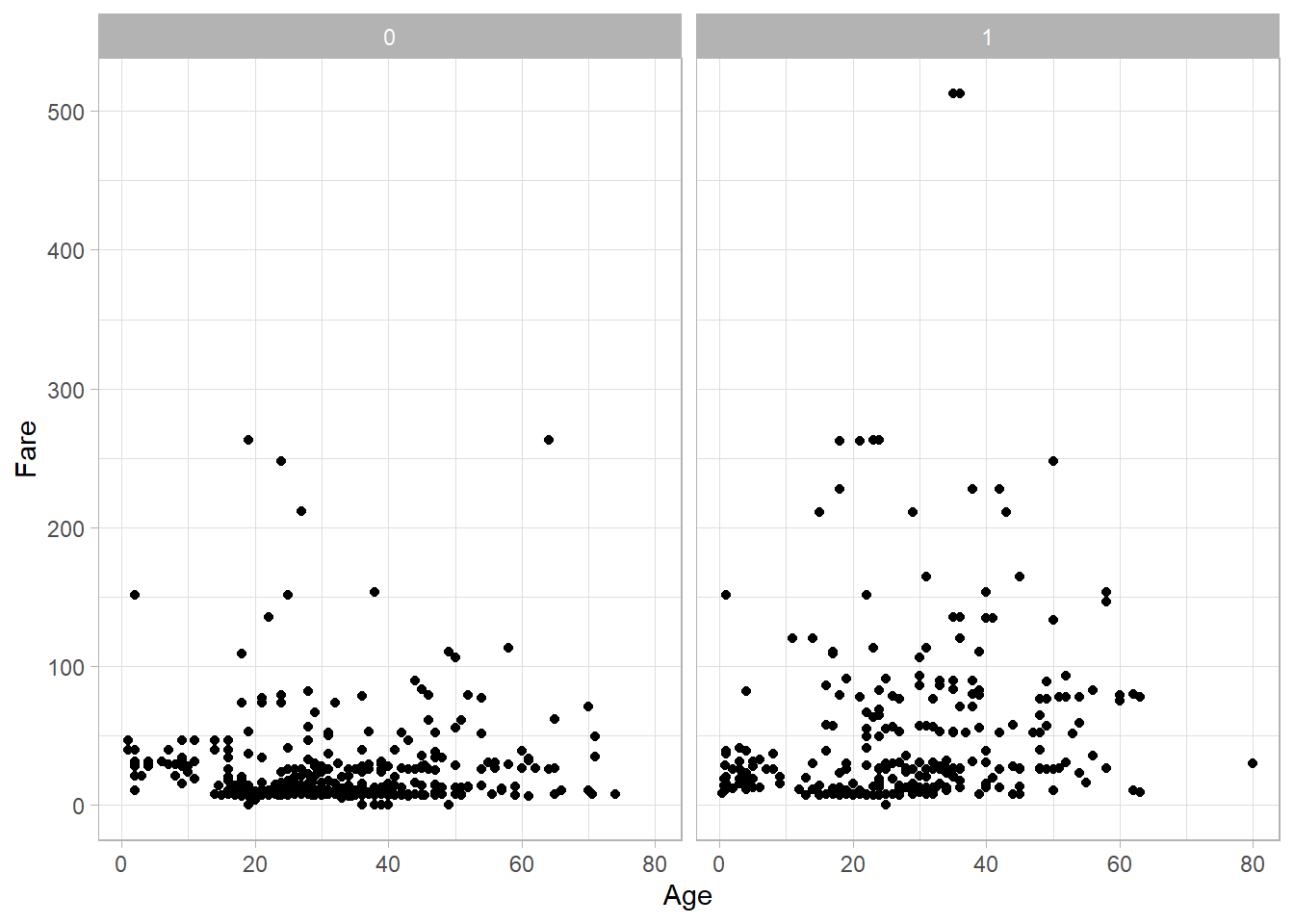
Using facet_wrap() instead yields a similar result when
dealing with only one categorical variable:
# Scatter plots with wrap
titanic_subset %>%
  ggplot(aes(x = Age, y = Fare)) +
  geom_point() +
  theme_light() +
  facet_grid(. ~ Survived)
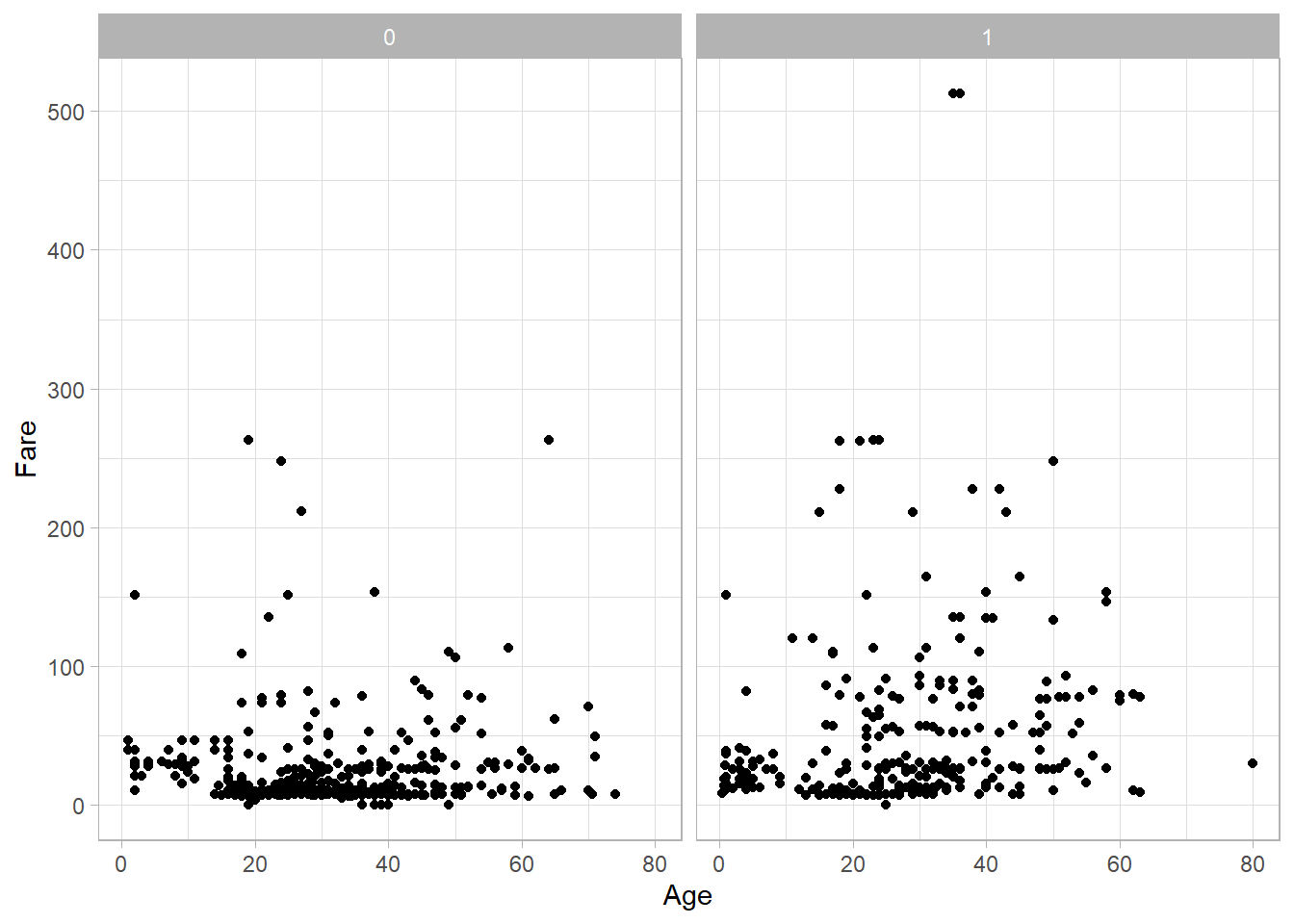
In this case, because Survived has only two levels,
both functions produce nearly identical visual outputs.
To better understand the differences between these two functions,
let’s now introduce a second categorical variable. We’ll create an
Age_Category variable that classifies passengers as
“Underage” (under 18), “Adult” (18 or older), or “Missing” (if the
age is not available):
# Create Age_Category
titanic_subset <- titanic_subset %>%
  mutate(
    Age_Category = case_when(
      is.na(Age) ~ "Missing",
      Age >= 18 ~ "Adult",
      TRUE ~ "Underage"))
Now, let’s use facet_grid() to create a grid of density
plots for Fare, with Age_Category on the
rows and Survived on the columns:
# Density plots with grids
titanic_subset %>%
  ggplot(aes(x = Fare)) +
  geom_density() +
  theme_light() +
  facet_grid(Age_Category ~ Survived)
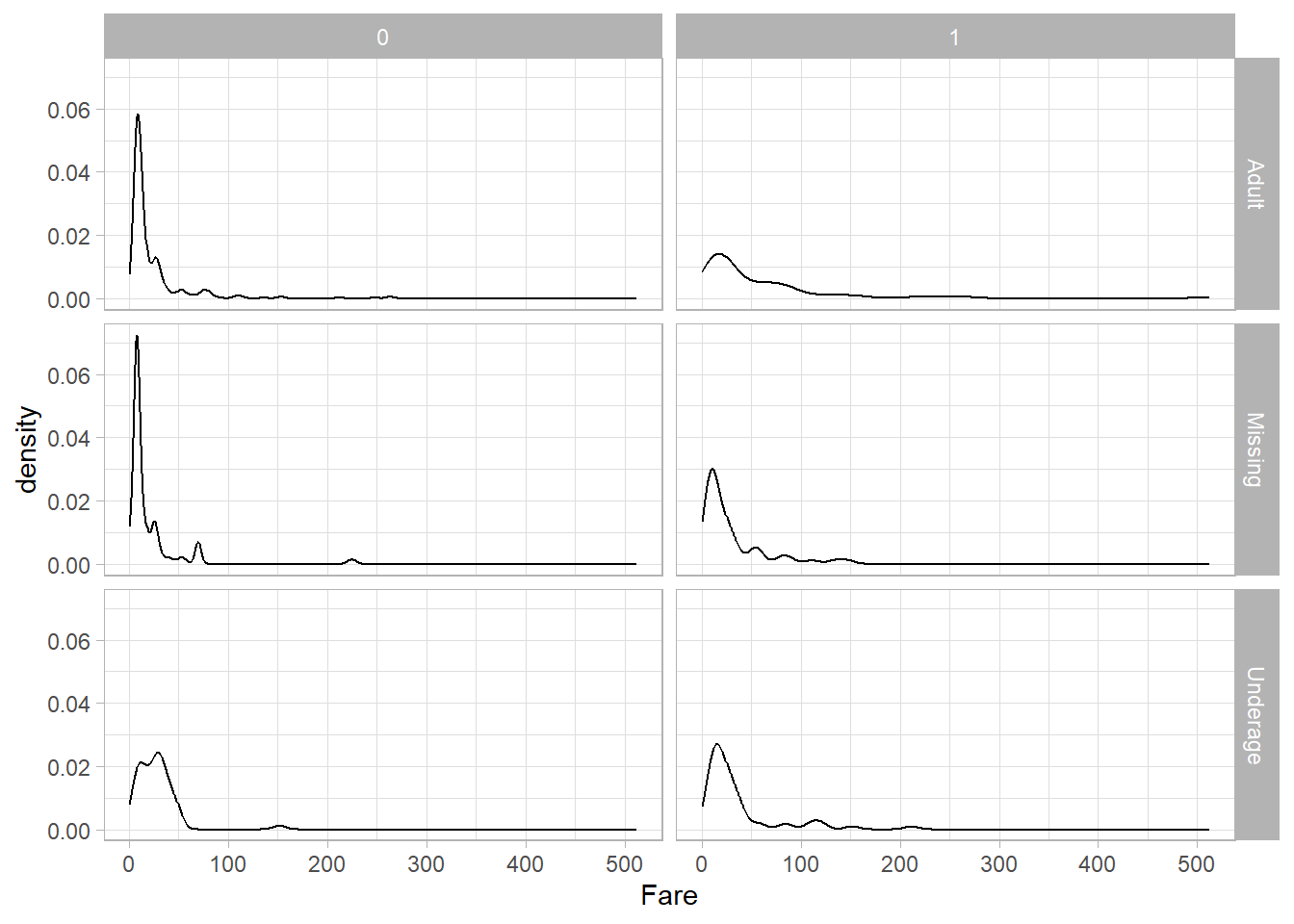
This results in six separate density plots. The rows represent the age categories, and the columns represent the survival categories.
If we use facet_wrap() instead, the layout changes:
# Density plots with wraps
titanic_subset %>%
  ggplot(aes(x = Fare)) +
  geom_density() +
  theme_light() +
  facet_wrap(Age_Category ~ Survived)
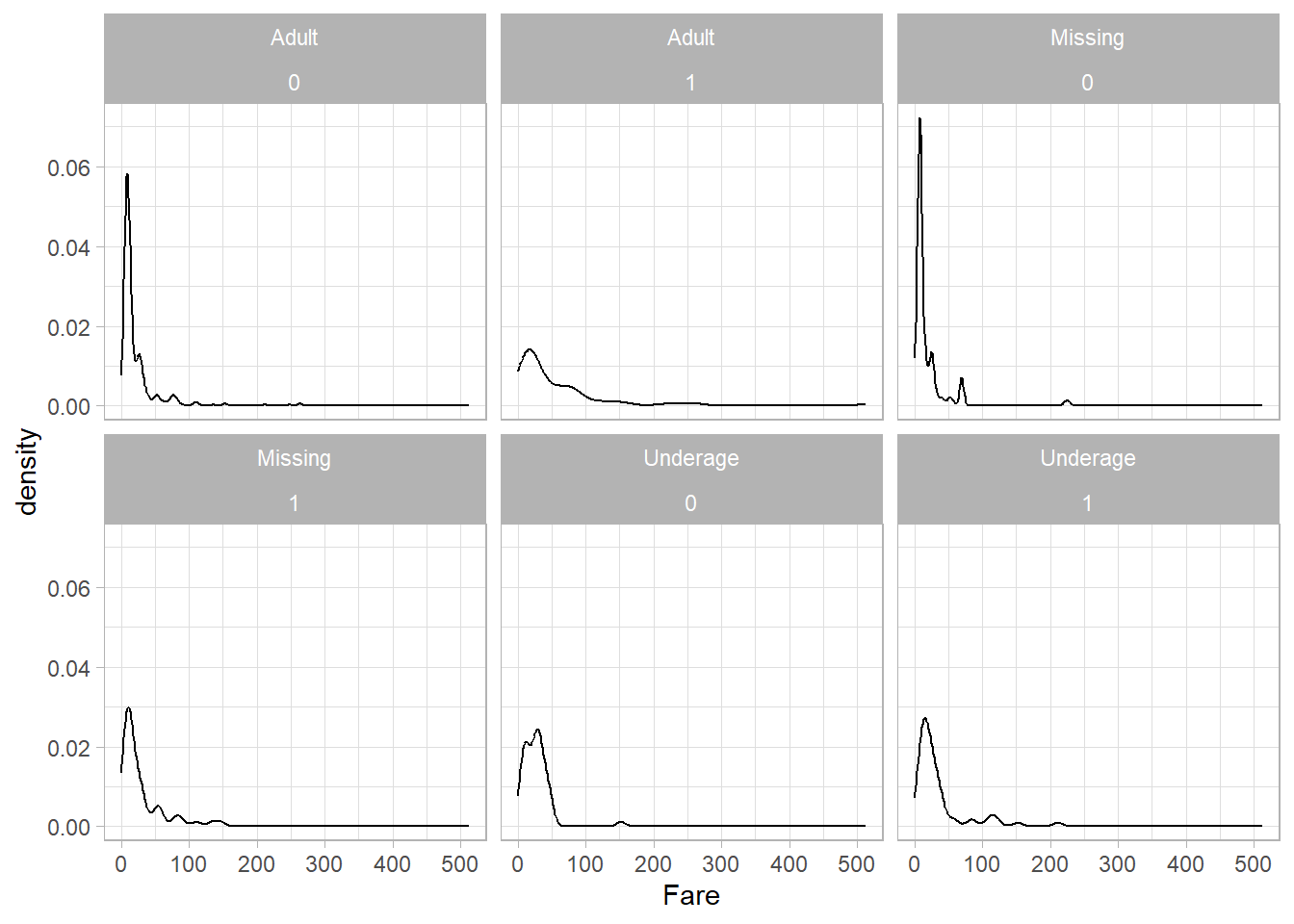
We still get the same six plots, but now each one is displayed as
part of a flexible layout with a combined label like
Age_Category = Underage, Survived = 1 at the top of
each panel. This makes facet_wrap() especially useful
when the combinations of variables don’t form a clean grid.
19.7 Theme
The ggplot2 package provides a default visual theme, as
we’ve seen in all our plots so far. However, we can change this
default theme by using one of the many alternatives included in the
package, or even by customizing a theme to match our own
preferences. In fact, we have already been using the
theme_light() function in our previous graphs to apply
a different look than the default one.
Playing with different themes is largely a matter of personal taste,
but the built-in themes in ggplot2 are generally high
quality and widely used. Choosing a theme helps ensure clarity and
consistency in the way your plots are presented.
Because nearly every visual element in a plot can be customized, we’ll focus on the basic intuition behind theme customization.
Let’s say we want the tick labels on the x-axis to appear larger. If
we’re using RStudio, we can type "axi" inside the
theme() function to explore available options via
autocomplete. Doing this reveals that the correct argument is
axis.text.x.
This tells ggplot2 that we want to change the text
labels on the x-axis. To specify how we want to change them, such as
adjusting the size or color, we use the
element_text() function. For example, here’s how we
would increase the text size for the x-axis in our original scatter
plot:
# Change the size of text on the x-axis
titanic_subset %>%
  ggplot(aes(x = Age, y = Fare)) +
  geom_point() +
  theme_light() +
  theme(axis.text.x = element_text(size = 15))
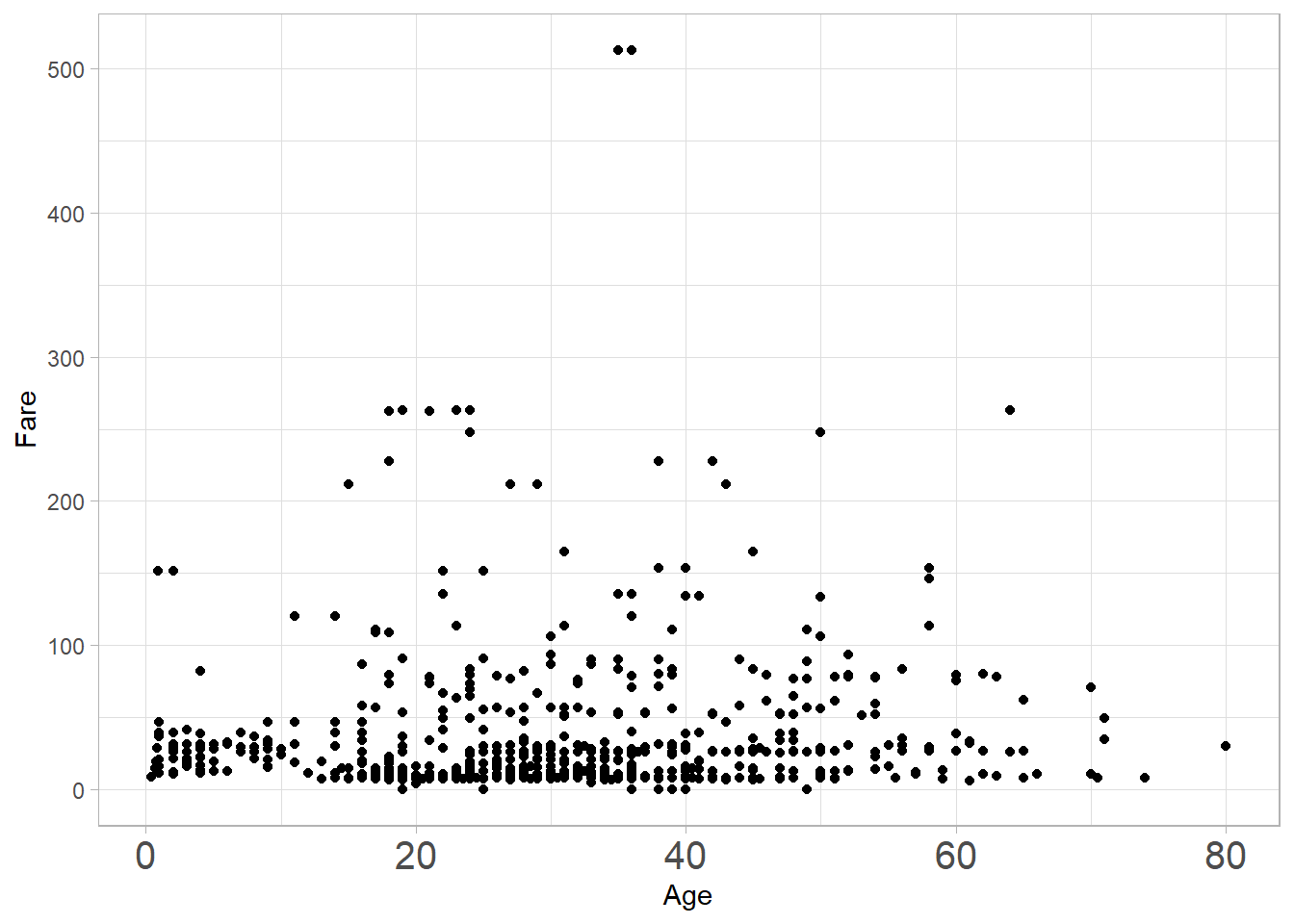
As a result, the x-axis labels now appear larger. We can clearly see this when comparing them with the unchanged y-axis labels. We can also modify other attributes, such as color. In the example below, the x-axis labels are now both larger and blue:
# Change the size and color of text on the x-axis
titanic_subset %>%
  ggplot(aes(x = Age, y = Fare)) +
  geom_point() +
  theme_light() +
  theme(axis.text.x = element_text(size = 15, color = "blue"))
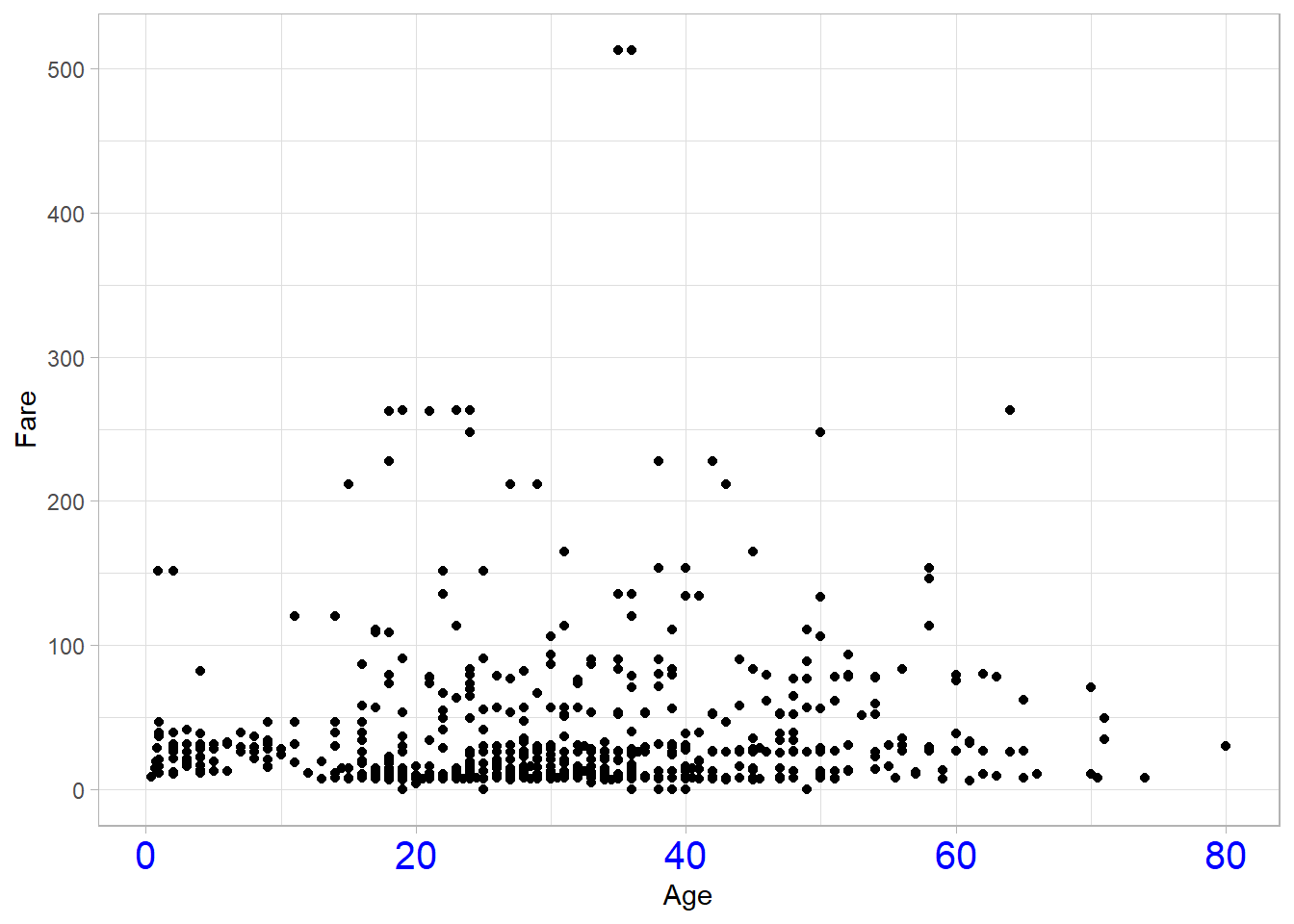
This example gives just a glimpse into the types of layout changes
you can make using theme(). It’s highly recommended to
experiment with these options and adjust your plots based on the
needs of your audience or the context of your analysis.
For more details, you can visit the official ggplot2 website to
explore theme documentation. Additionally, RStudio provides publicly
available
ggplot2 cheat sheets, which are a helpful reference when customizing your plots.
19.8 Recap
In this chapter, we explored key types of plots in
ggplot2, including bar plots, box plots, line plots,
and the use of facets to create multiple subplots based on
categorical variables. We also discussed how to customize the
appearance of plots through themes and how to control aesthetics
either globally within the ggplot() function or locally
within individual geoms. These tools form the foundation for
effective and flexible data visualization in R.